ProductivityTools adds a range of extra features to your daily work in Daylite – including the delegation feature.
With the delegation feature, you define which Daylite users can receive your notifications. This is helpful for vacation or sick leave replacements: your substitute receives notifications about all your existing tasks and appointments, so no important task remains undone and no appointment is missed.
| Requirement: The delegation feature is available to all Plus Package customers. |
Table of contents
Activating the delegation feature
- Setting up delegation in the Plus Package plugin and PluginCenter
- Managing notifications as a delegate
Understanding the delegate bell icon
Activating the delegation feature
To set up the delegation feature, proceed as follows:
Setting up delegation in the Plus Package plugin and PluginCenter
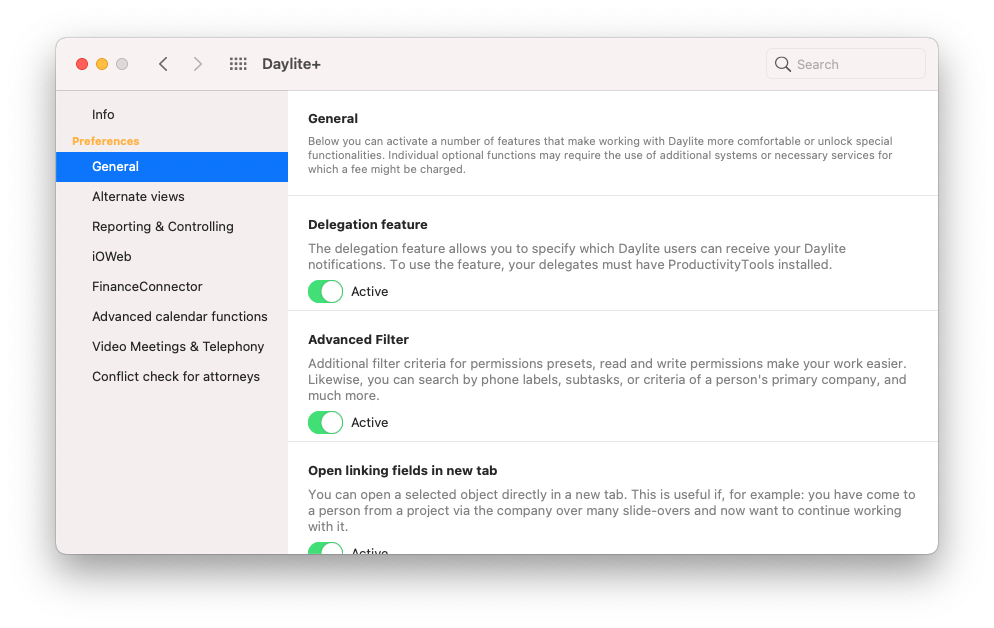
- Activate the delegation feature under General in the Plus Package (Daylite+) plugin preferences.
- In the PluginCenter open the ProductivityTools and select the Delegation tab.
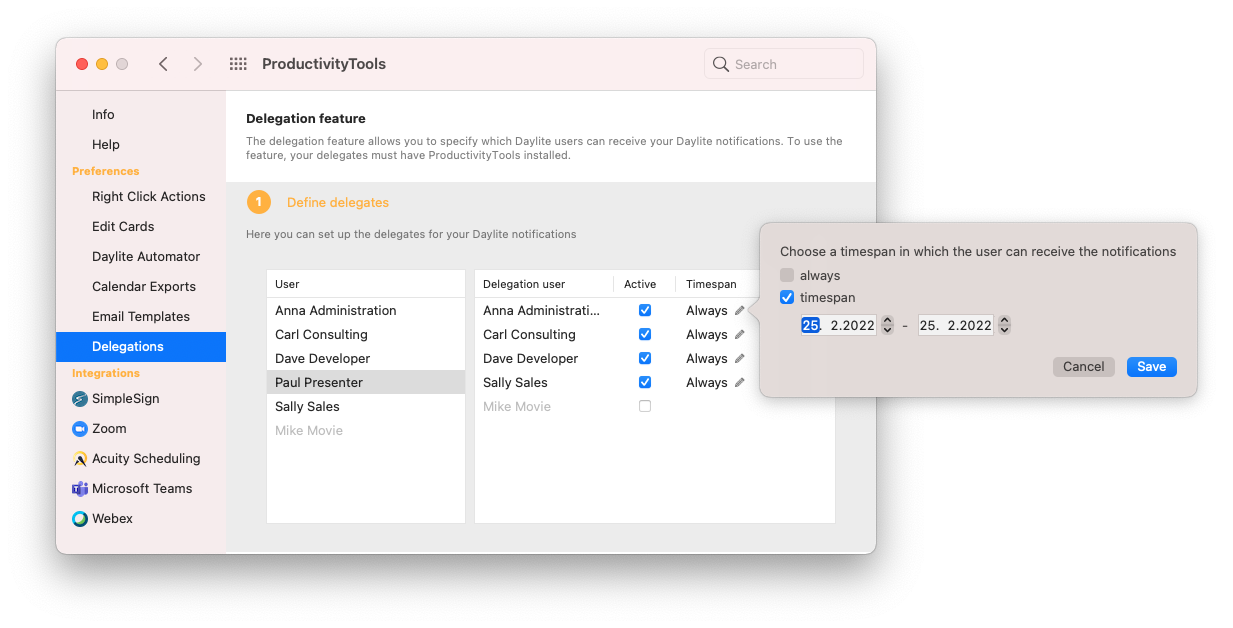
- Tick the boxes next to the colleagues who should also receive your notifications and cover for you.
- Time span: Choose whether your colleague should permanently substitute for you or only within a specific time span.
- The changes are not active until both you and your colleague restart Daylite.
Managing notifications as a delegate
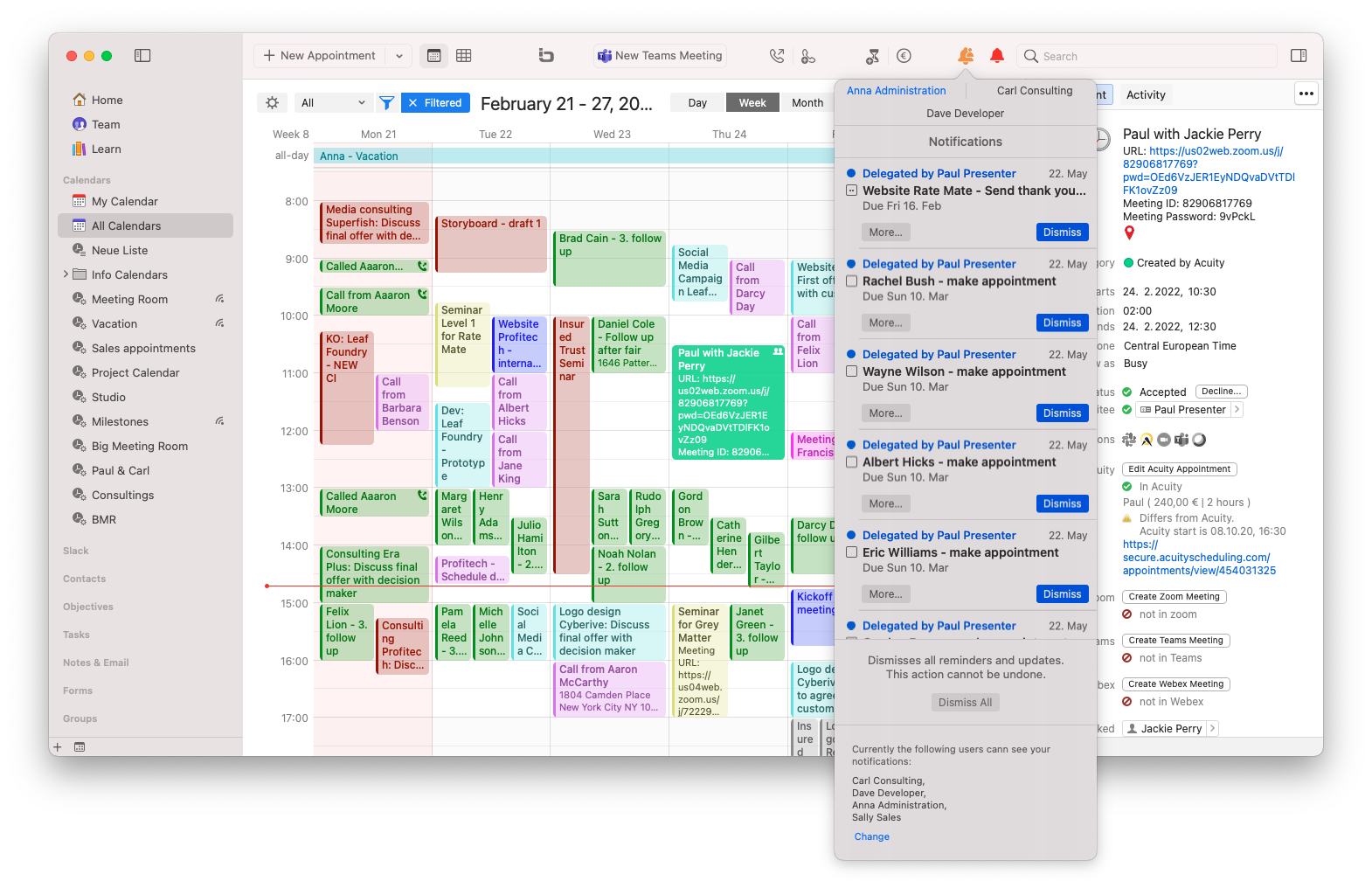
- A second bell now appears at the top right of the menu bar. It turns orange when notifications are received for the person you cover. Click the bell to see all received notifications.
- If you click on the bell, you will see all notifications for appointments and tasks of the person you stand in for. You will also see the name of the person you stand in for at the top.
- It's also possible to dismiss these notifications.
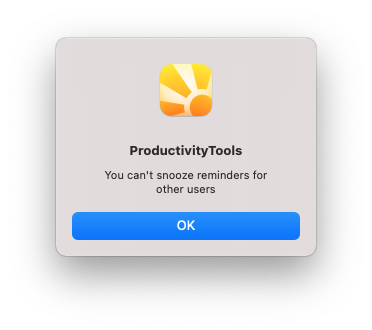
- Please note that you can only snooze your own notifications. For notifications you receive as a delegate, the following pop-up appears instead:
Understanding the delegate bell icon
Why do I see an additional bell?
You see this additional bell because a coworker selected you as a delegate. To find out how to activate the delegation feature yourself, see the section Setting up delegation in the Plus Package plugin and PluginCenter.
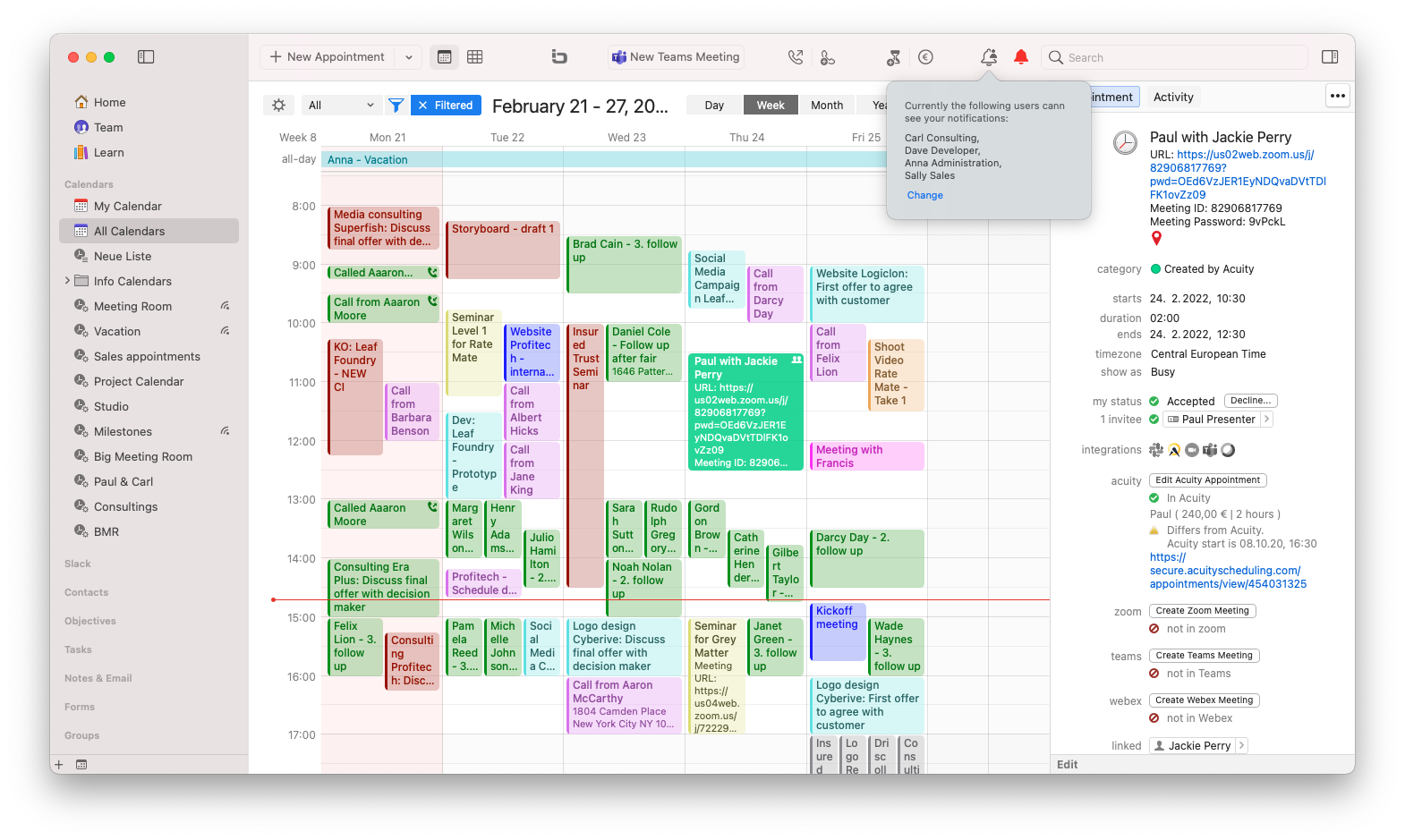
View when someone else covers for you
If you are not a delegate of another person, but someone else covers for you, a click on the bell shows something like this:
View for mutual delegation
If you stand in for another person and at the same time have someone who substitutes for you, it looks like this: