Microsoft Teams is Microsoft's chat, meeting, and collaboration platform. With the Teams integration in the Daylite extension ProductivityTools, you can create a Teams meeting from a Daylite appointment with one click.
Delete Teams meetings, move them when you reschedule an appointment, or copy the meeting details for your Teams meeting, all without leaving Daylite.
| Requirement: One of the Microsoft 365 Business plans is required for the Teams integration. The free version of Microsoft Teams does not support this integration. |
Table of contents
Setup
Manage Teams meetings
- How do I create a Teams meeting in Daylite?
- How can I move/reschedule a Teams meeting within Daylite?
- How do I delete a Teams Meeting?
Setup
How do I set up Teams integration using ProductivityTools?
To set up the Teams integration, please follow these steps:
- Navigate from the Daylite menu to Preferences -> iOSXpert PluginCenter and click ProductivityTools
- Choose Microsoft Teams under Integrations
- Use the switch to activate the Daylite Teams integration
- Now your MS Office Administrator needs to authorise the use of the interface for all users. If you are not the administrator, click the green button to copy the link to the clipboard and send it to your administrator. Only proceed when your MS Office administrator has completed this step.
- Log in with an existing account or create a new account
Manage Teams meetings
How do I create a Teams meeting in Daylite?
After you have set up the integration successfully, you can set up a Teams Meeting quickly by just clicking on this button and then follow the instructions:
Please follow these steps:
- Select New Teams Meeting.
- The Teams meeting wizard opens. Enter all the information about the meeting here.
- Click Next and complete the information.
- Invite Daylite participants and external participants. Teams will send the meeting details to external attendees afterwards.
- Create the meeting.
How can I move/reschedule a Teams meeting within Daylite?
To postpone an appointment with a Teams meeting, first move the Daylite appointment. Then, in the appointment, click the Teams integrations button and choose Update Teams meeting.
If you have accidentally moved a Daylite appointment and its time and/or date doesn't match the Teams meeting anymore, you can easily reset your Daylite appointment to its original time.
Select the appointment, then choose Manage Teams Meeting -> Move appointment to Teams Meeting date.
Alternatively, you can update the Teams meeting date or delete the Teams meeting altogether.
How do I delete a Teams Meeting?
To delete a Teams meeting from within a Daylite appointment, proceed as follows:
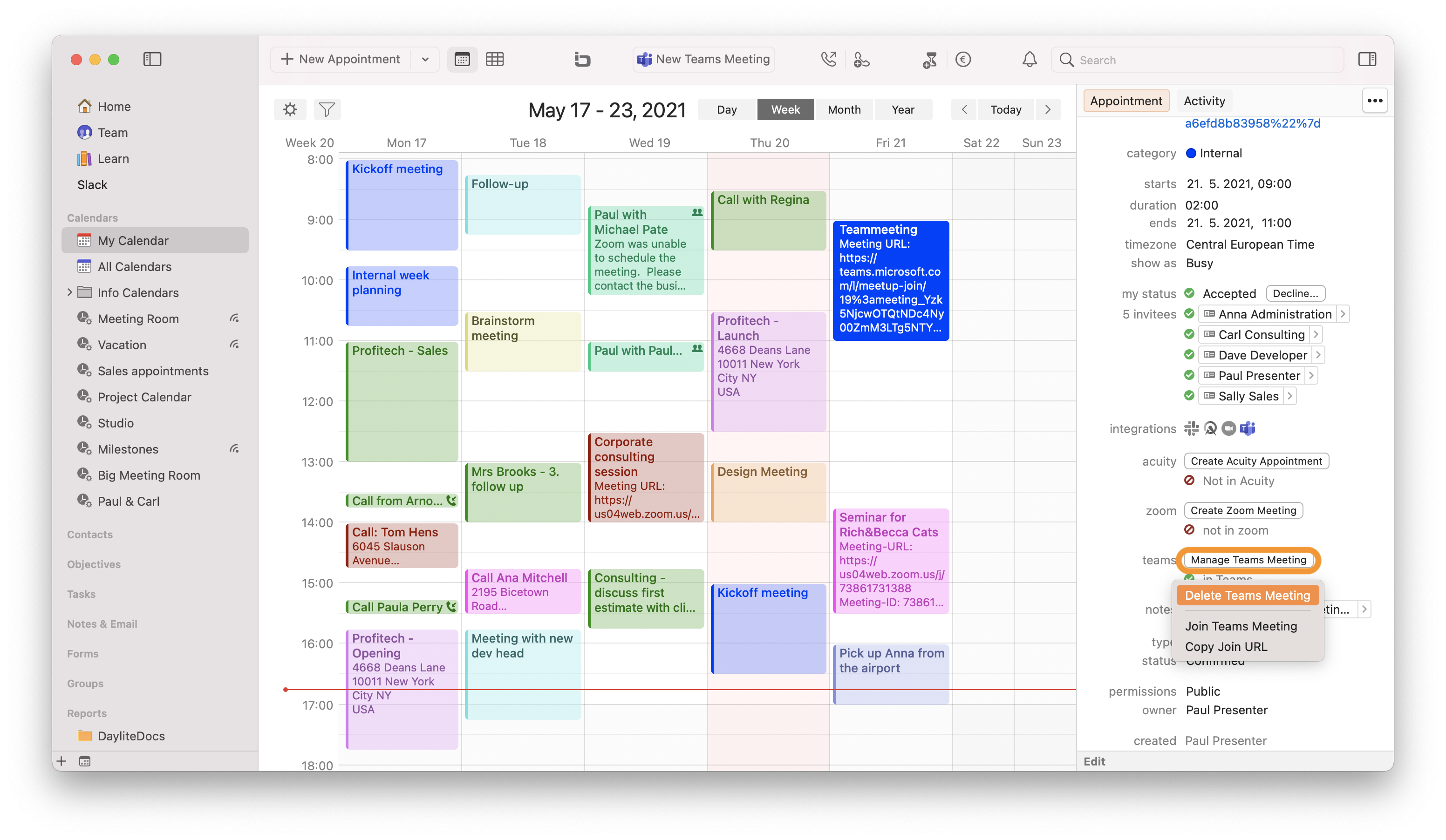
- Within the Daylite appointment click on Manage Teams Meeting
- Select Delete Teams Meeting
- The Teams meeting has now been removed