SimpleSign and Dropbox Sign are online services that allow documents to be released for signature. This is especially useful for estimates, contracts, or similar documents.
With the help of the plugin ProductivityTools, you can integrate SimpleSign or Dropbox Sign into Daylite and submit an estimate created in Daylite directly to the selected service. You can then send it from Daylite to your customers using a self-created ProductivityTools email template.
If you use Dropbox Sign, the email is automatically sent immediately. If you send the email using SimpleSign, it is automatically saved in the Daylite contact's activity history.
Table of contents
General
SimpleSign
- Configure the SimpleSign integration
- Send an estimate with SimpleSign
- Revoke an estimate in SimpleSign
Dropbox Sign
Additional Functions
General
Signature function
When a document is signed, the IP address and time are recorded, which makes the signature and thus the document legally effective.
Monitoring function
You can monitor shared documents and be automatically notified through SimpleSign or Dropbox Sign when the recipient views, signs or performs other actions within the document.
If the customer has questions, they can note them at the document in SimpleSign. This allows you to share information with your customers quickly and comfortably.
SimpleSign
Configure the SimpleSign integration
SimpleSign is an online service that allows documents to be released for signature. With the help of the plugin ProductivityTools, you can integrate SimpleSign into Daylite and send documents, such as estimates from Daylite to customers for online signing.
To set up the SimpleSign integration, please proceed as follows:
| Please note: To use SimpleSign with Daylite you need at least the SimpleSign Team Plan and the plugin ProductivityTools. If you'd like to test the integration first, you can as well create a free SimpleSign test account. |
Settings in SimpleSign
- Create a free account at SimpleSign, if you do not already have a paid SimpleSign account (Team plan or higher)
- Then log in to your SimpleSign account
- Navigate to Add-Ons via the menu icon in the upper left corner
- Under All Add-Ons, please enter API in the search field
- Activate the API Add-On
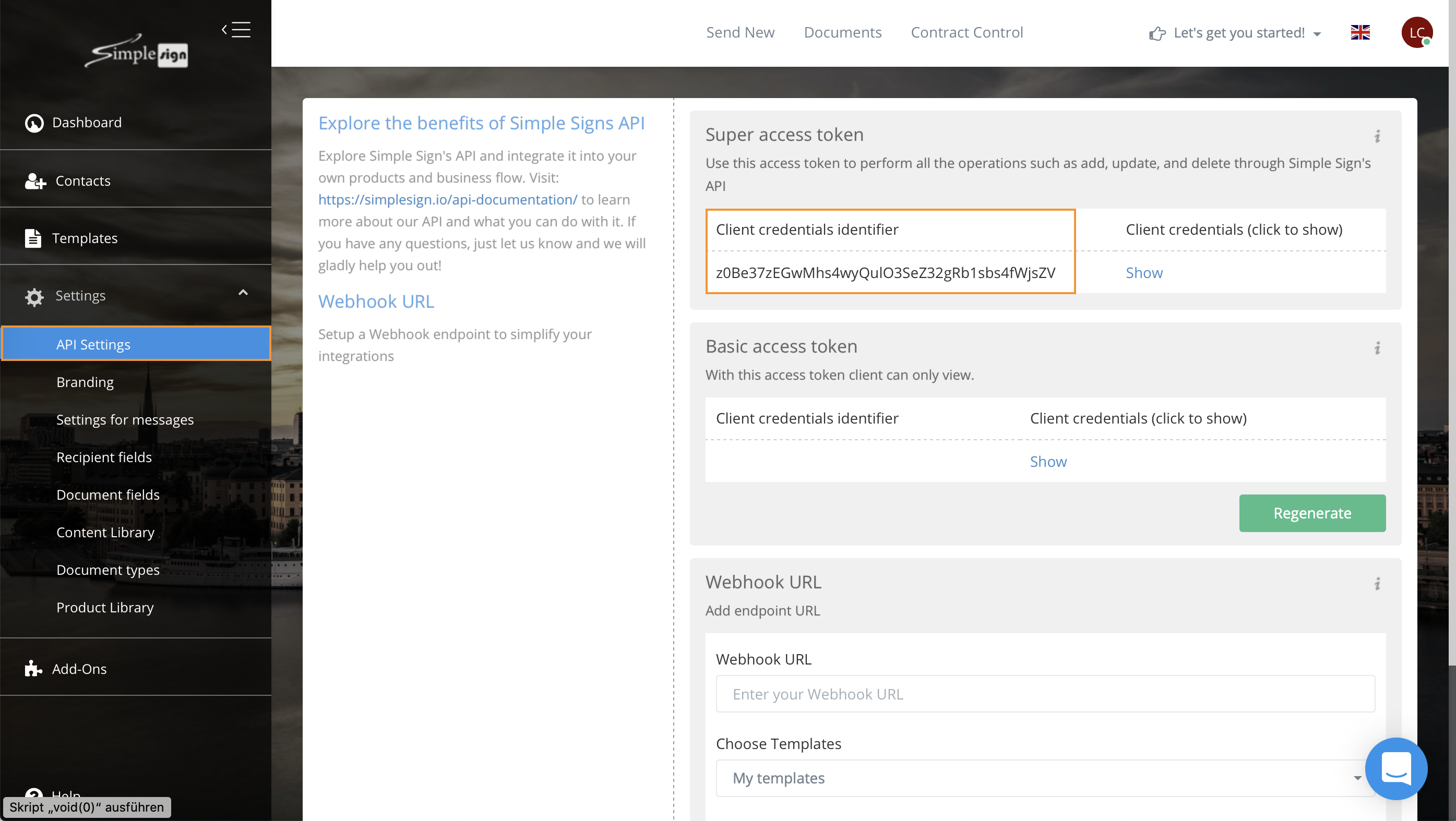
- Now navigate within the menu to Settings -> API Settings
- Copy the Super access token that is shown under Clients credentials identifier
Settings in ProductivityTools
- Please make sure that the plugin ProductivityTools is installed
- Then, please click within the PluginCenter at ProductivityTools and choose SimpleSign under Integrations
- Activate the SimpleSign integration with the slider
- Now select the Login button and paste in the super access token previously copied from SimpleSign
- Click at Connect
The connection between SimpleSign and Daylite has now been successfully established.
Learn how to send an estimate from Daylite using SimpleSign in the Send an estimate with SimpleSign section.
Send an estimate with SimpleSign
If you create an estimate in Daylite, the plugin ProductivityTools makes it possible to submit it to the online service SimpleSign. So your estimate can be signed directly online by your customer.
Please first have a look at the Configure the SimpleSign integration section to learn how to set up the Daylite-SimpleSign integration.
If you create an estimate in Daylite, it will be shown in a separate preview window.
To send the link to the customer via email for signing the estimate in SimpleSign directly, please check the boxes for Send via email, as well as Use SimpleSign and select the appropriate email template for sending the estimate.
The ProductivityTools provide an example email template for the use of SimpleSign: [EN] Estimate example SimpleSign.
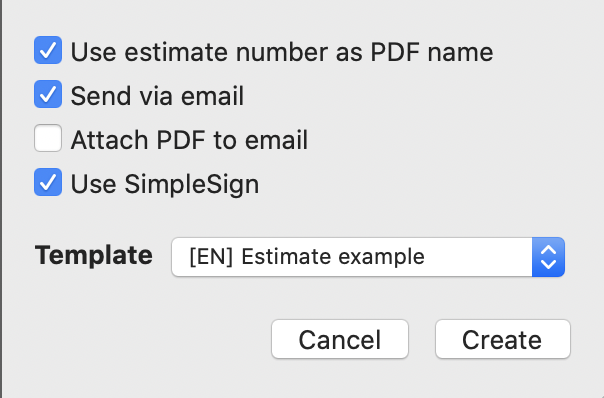
Alternatively, use your own ProductivityTools email templates, or create new templates.
You can also open your ProductivityTools email templates from this dialog to edit them using the Edit Email Templates option.
Revoke an estimate in SimpleSign
If you want to revoke an offer that has already been sent, proceed as follows:
- Navigate to the opportunity with the estimate that is to be revoked
- Use the right mouse button on the opportunity and select the Revoke last SimpleSign document function
- Alternatively, select the relevant estimate in the history and click on the right mouse button action Revoke SimpleSign document
- Click on the button Revoke document
Dropbox Sign
Configure the Dropbox Sign integration
Dropbox Sign is an online service that allows documents to be released for signature. With the help of the plugin ProductivityTools, you can integrate Dropbox Sign into Daylite and send documents, such as estimates from Daylite to customers for online signing.
To set up the Dropbox Sign integration, please proceed as follows:
| Please note: You need a paid Dropbox Sign API plan to use the integration. Every paid plan from Dropbox Sign has a free trial month while you can cancel the subscription again. |
Settings in Dropbox Sign
- Create a paid account with Dropbox Sign if you do not already have one
- Log in to your Dropbox Sign account
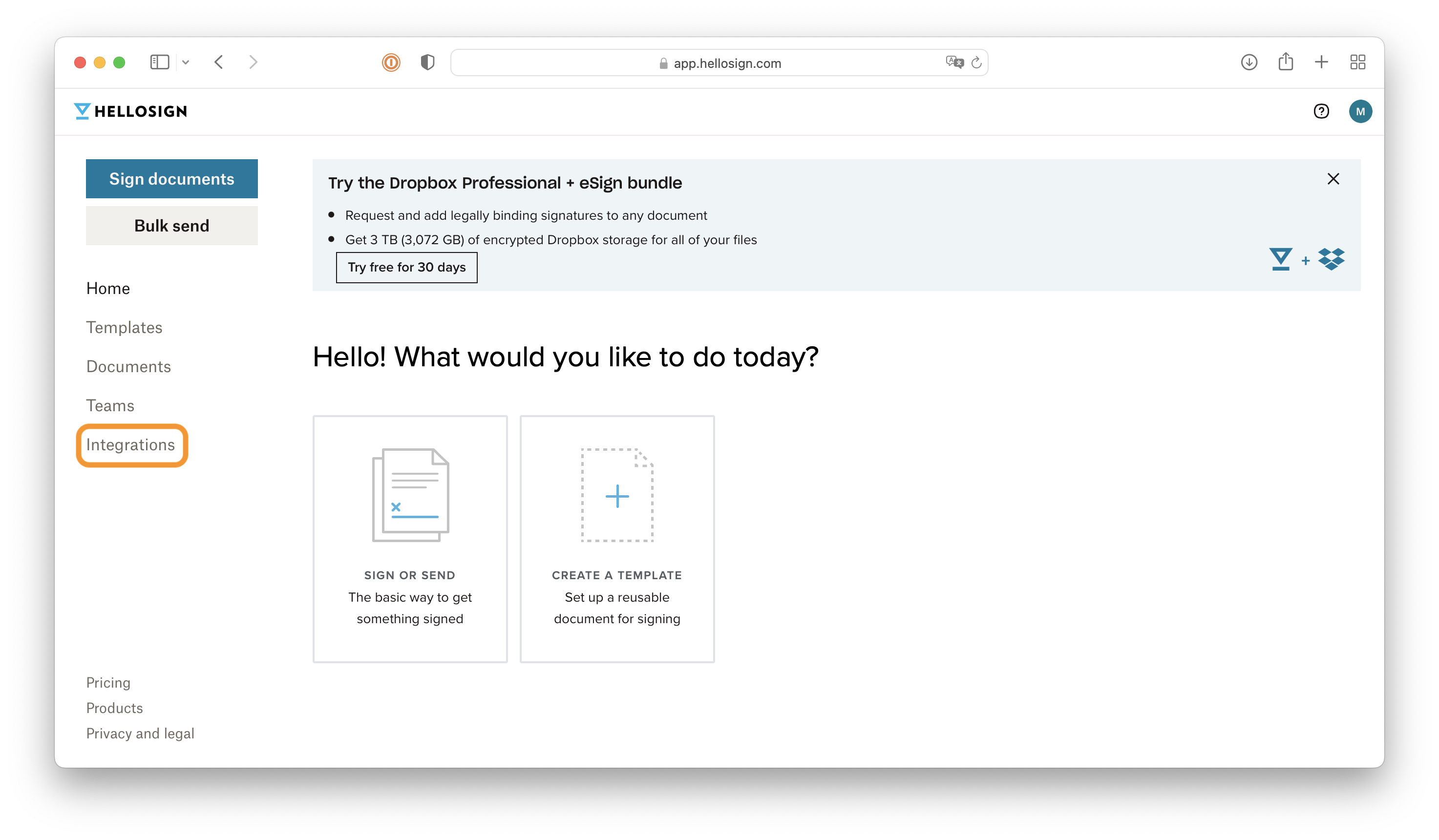
- Select Integrations from the left menu bar in Dropbox Sign
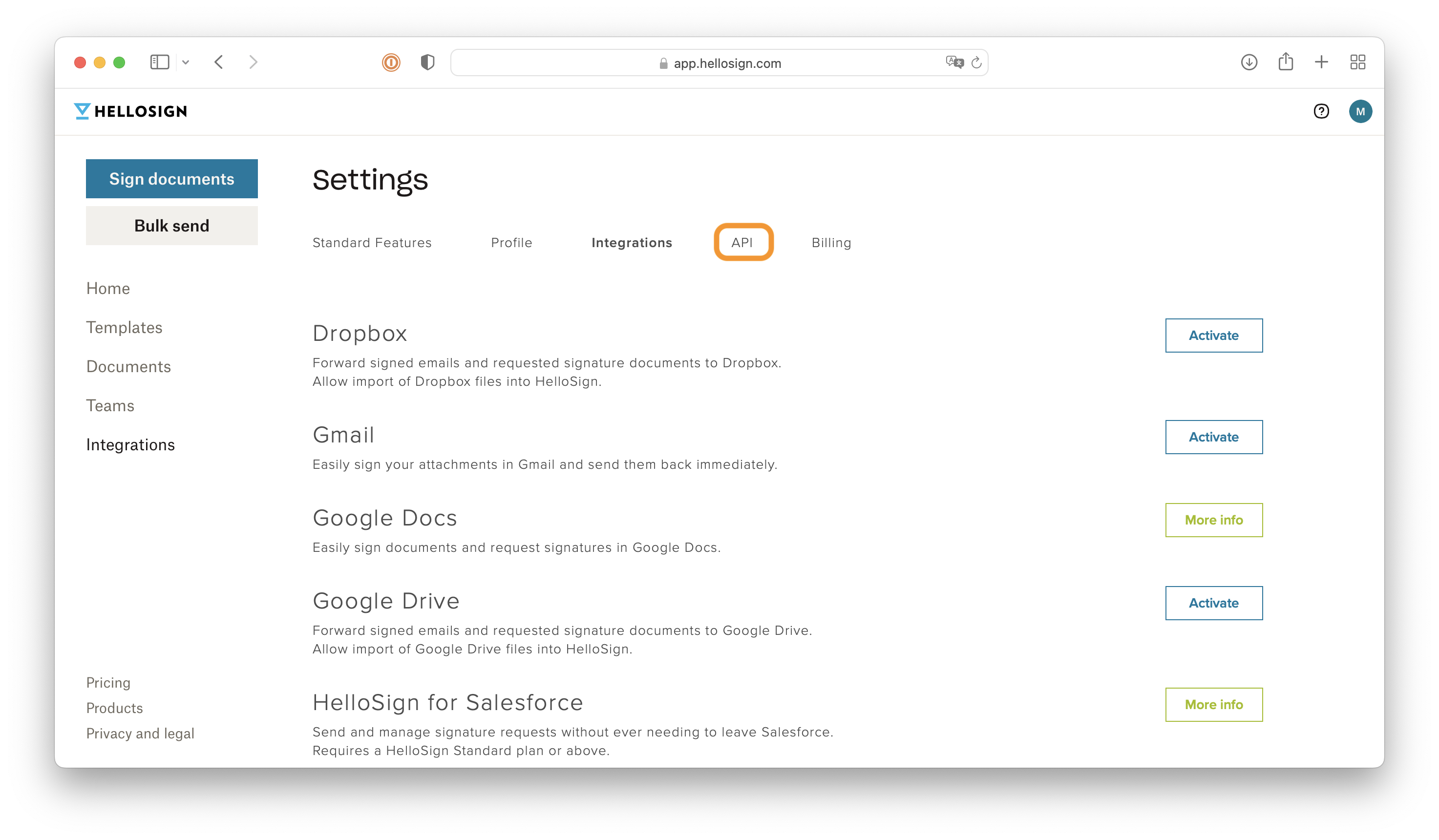
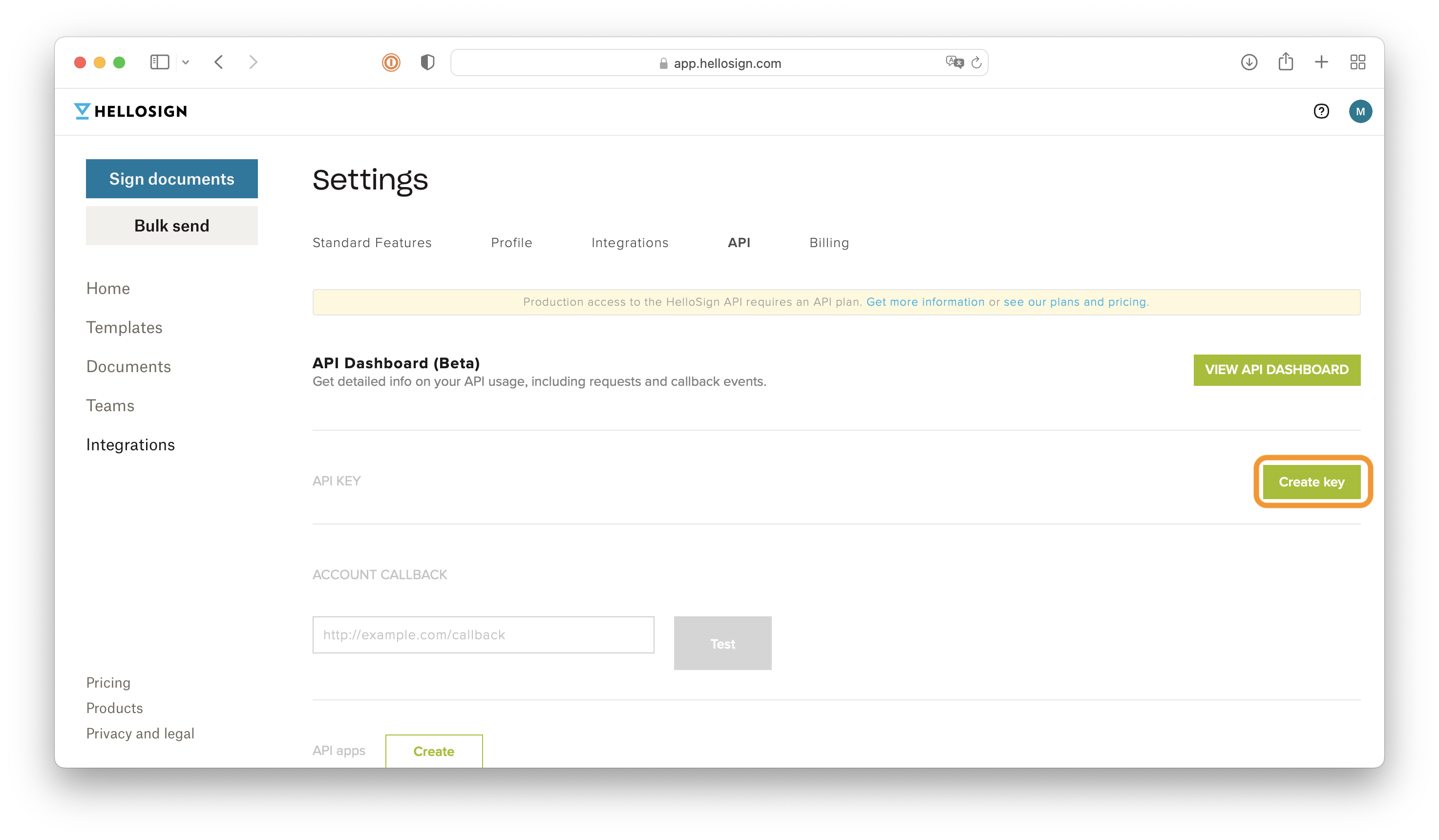
- Navigate to the API tab
- Click on the Create Key button
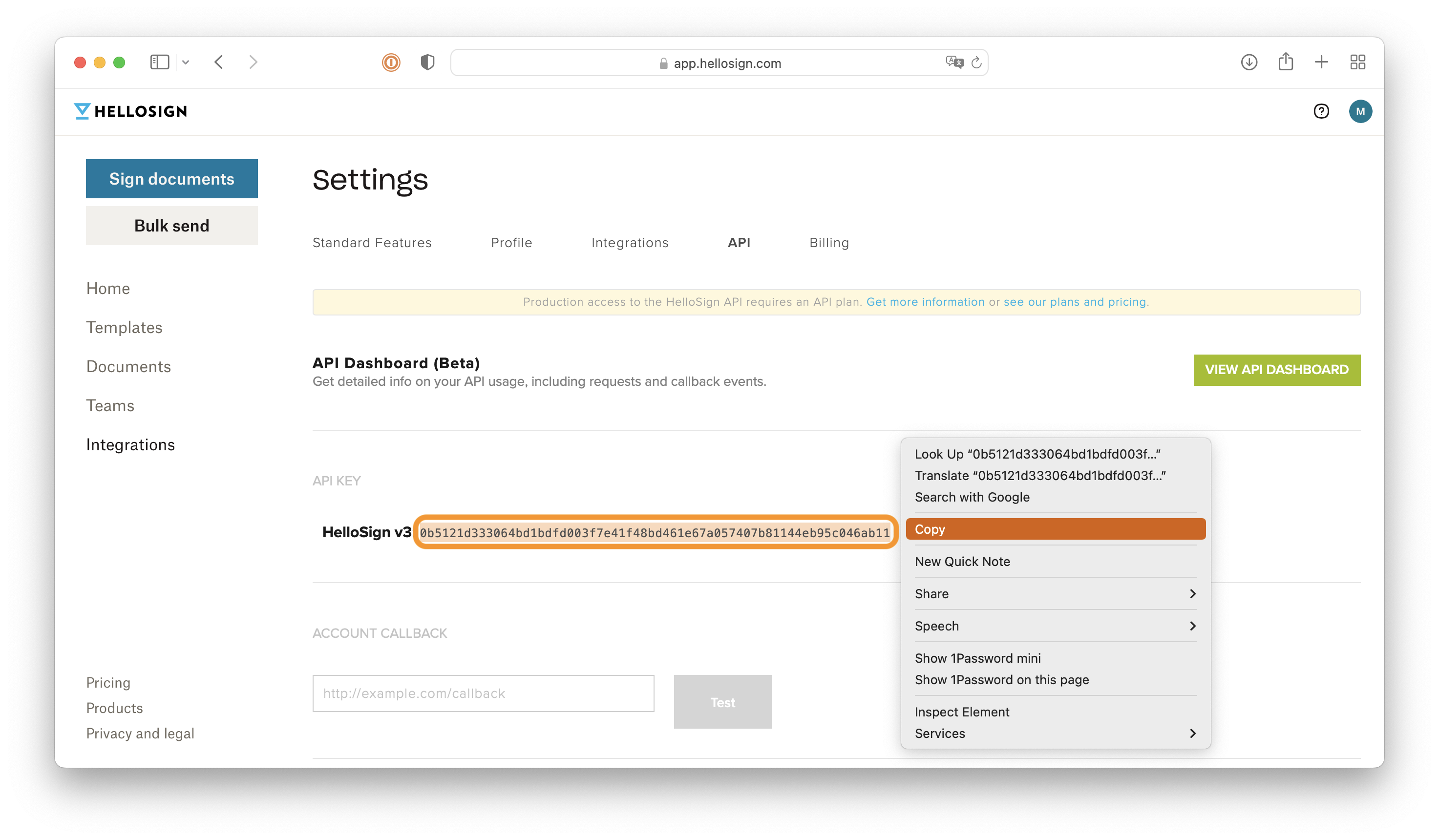
- Copy the created API key to the clipboard
Settings in ProductivityTools
- Make sure that the ProductivityTools plugin is installed
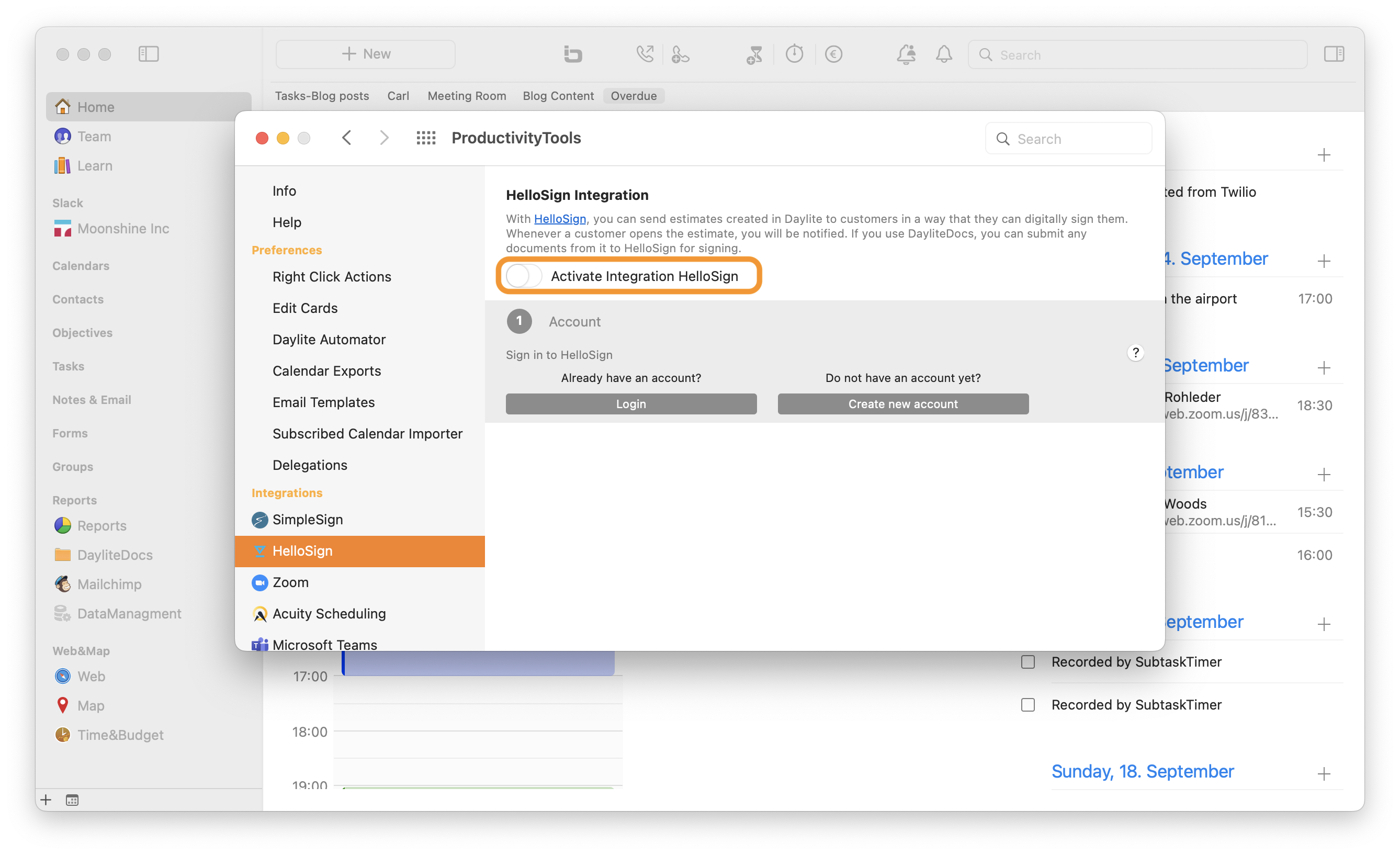
- Navigate to the PluginCenter, click on ProductivityTools and select Dropbox Sign in the Integrations section
- Activate the integration via the slider
- Now select the Log In button and paste the API key copied from HelloSign
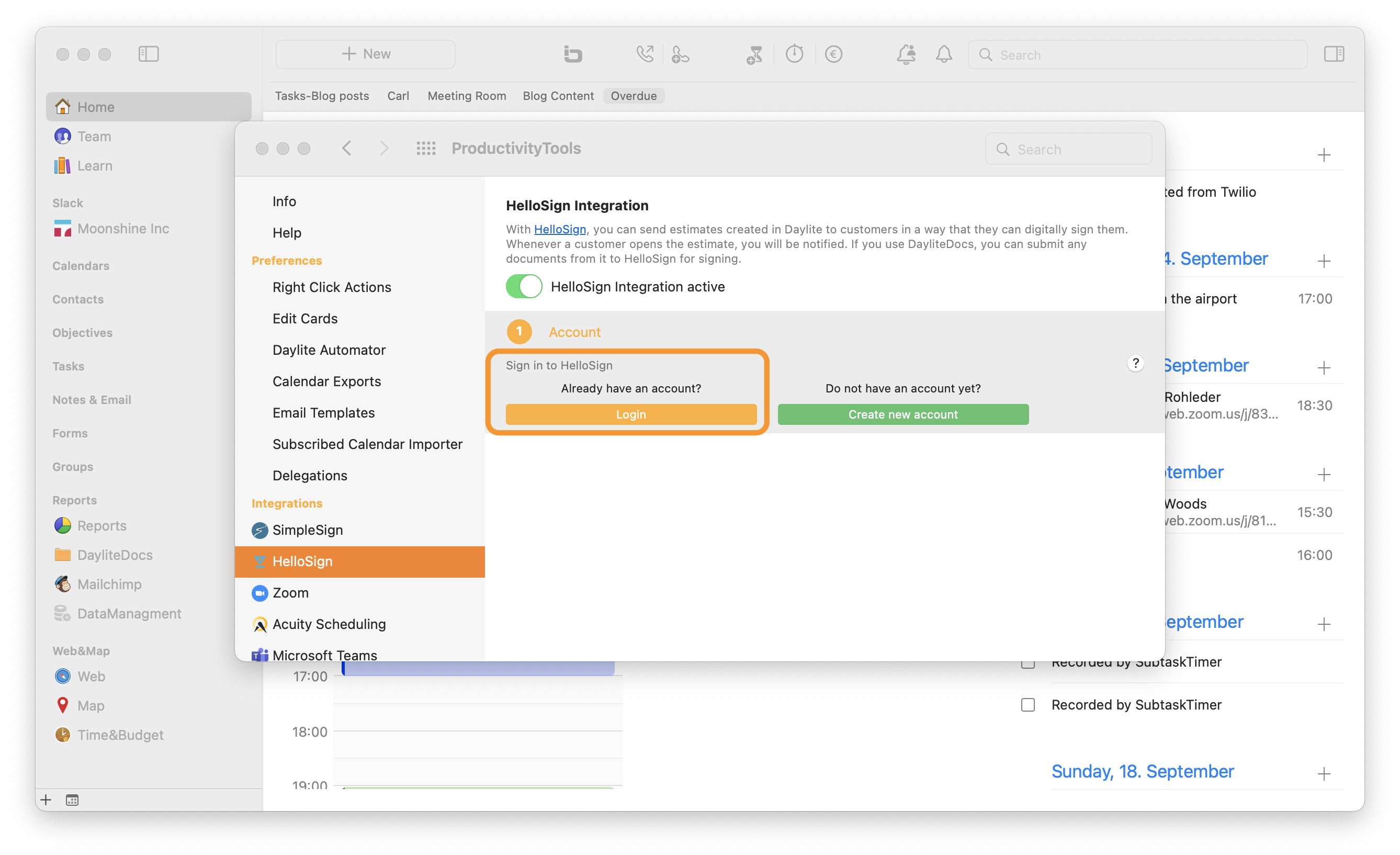
- Click on the Connect button
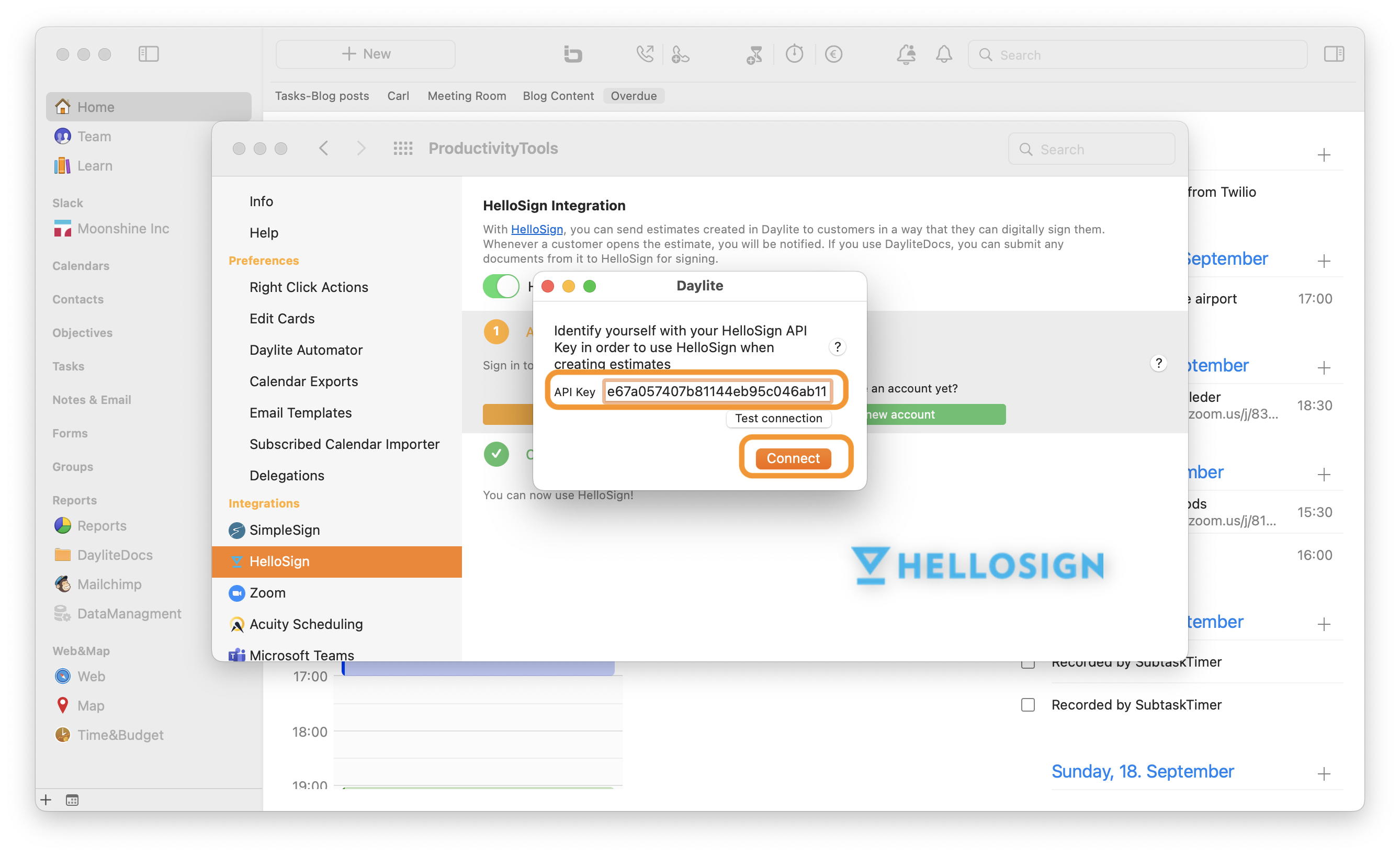
The connection between Dropbox Sign and Daylite has now been successfully established.
Learn how to send an estimate from Daylite using Dropbox Sign in the Send an estimate with Dropbox Sign section.
Send an estimate with Dropbox Sign
If you create an estimate in Daylite, the plugin ProductivityTools makes it possible to submit it to the online service Dropbox Sign. So your estimate can be signed directly online by your customer.
Please first have a look at the Configure the Dropbox Sign integration section to learn how to set up the Daylite-Dropbox Sign integration.
If you create an estimate in Daylite, it will be shown in a separate preview window.
To send the link to the customer via email for signing the estimate in Dropbox Sign directly, please check the boxes for Send via email, as well as Use Dropbox Sign and select the appropriate email template for sending the estimate.
The ProductivityTools provide an example email template for the use of Dropbox Sign: [EN] Estimate example Dropbox Sign.
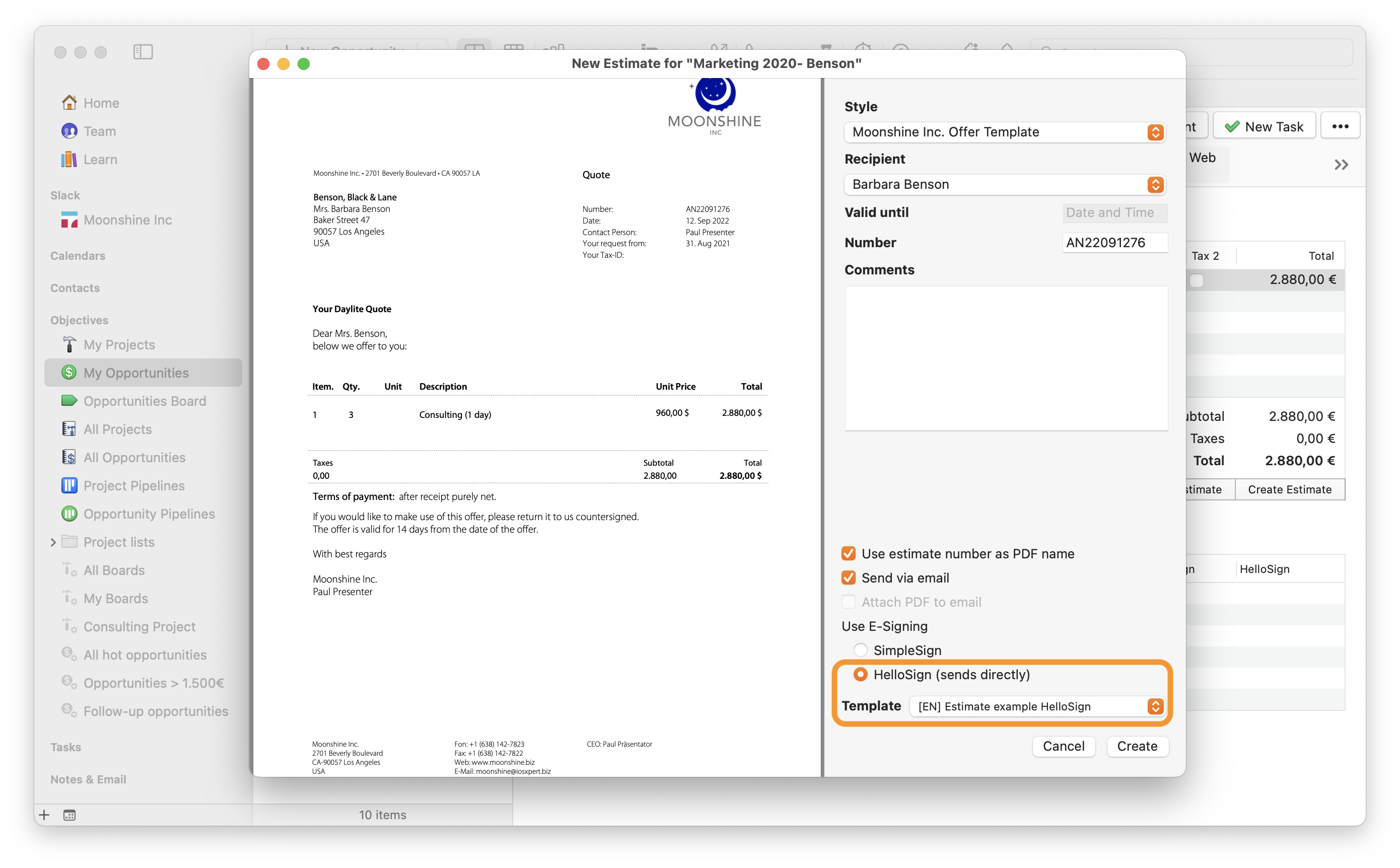
Alternatively, use your own ProductivityTools email templates, or create new templates.
| Please note: The estimate and the data of the email template are transferred directly to Dropbox Sign and sent immediately by Dropbox Sign. You have no chance to edit the email before it is sent. |
Additional Functions
Resend an estimate
If you want to resend an offer, which has already been sent, or send it to another contact person, proceed as follows:
- Navigate to the opportunity with the quote that you want to resend
- In the history of the opportunity, use the right mouse button on the relevant offer
- Select the function Send estimate via email templates (SimpleSign) or Send estimate via email templates (Dropbox Sign)
- Select a recipient
- Activate Send email with template and select an email template
- Click on Send
Related articles