Using the Daylite plugin ProductivityTools it is possible to integrate the video and web conferencing service Webex into Daylite.
Create a Webex meeting from a Daylite appointment with one click. Delete Webex meetings or copy the access data for your Webex meeting without having to leave Daylite.
Learn how to set up the Webex integration, and how to create, move/reschedule, or delete a Webex meeting in the sections below.
Table of contents
Setup
Usage
- How do I create a Webex meeting in Daylite?
- How can I move/reschedule a Webex meeting within Daylite?
- How do I delete a Webex Meeting?
Setup
How do I set up Webex integration using ProductivityTools?
With the Webex integration in the Daylite plugin ProductivityTools it is possible to create a Webex meeting from within Daylite.
To set up the Webex integration, please follow these steps:
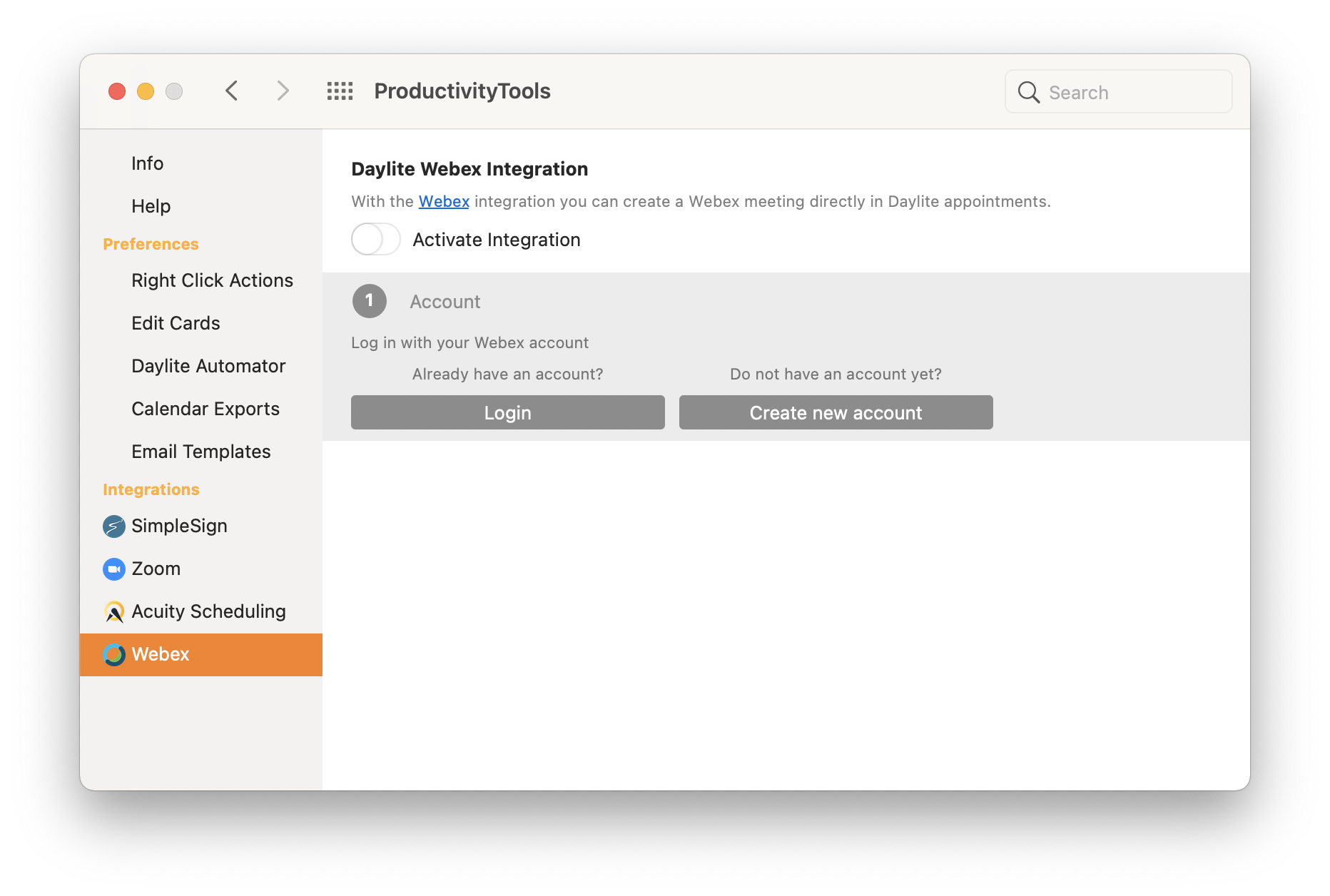
- Navigate from the Daylite menu to Preferences -> iOSXpert PluginCenter and click ProductivityTools
- Choose Webex under Integrations
- Use the switch to Activate the Daylite Webex integration
- Log in with an existing account or create a new account
| Please note: Some Webex users first have to log into this page before they can use the integration with Daylite: web.webex.com/onboarding/activate |
Usage
How do I create a Webex meeting in Daylite?
To create a Webex meeting from a Daylite appointment, you need the Daylite plugin ProductivityTools (see Setup).
After you have set up the integration successfully, please follow these steps to create a Webex meeting from Daylite:
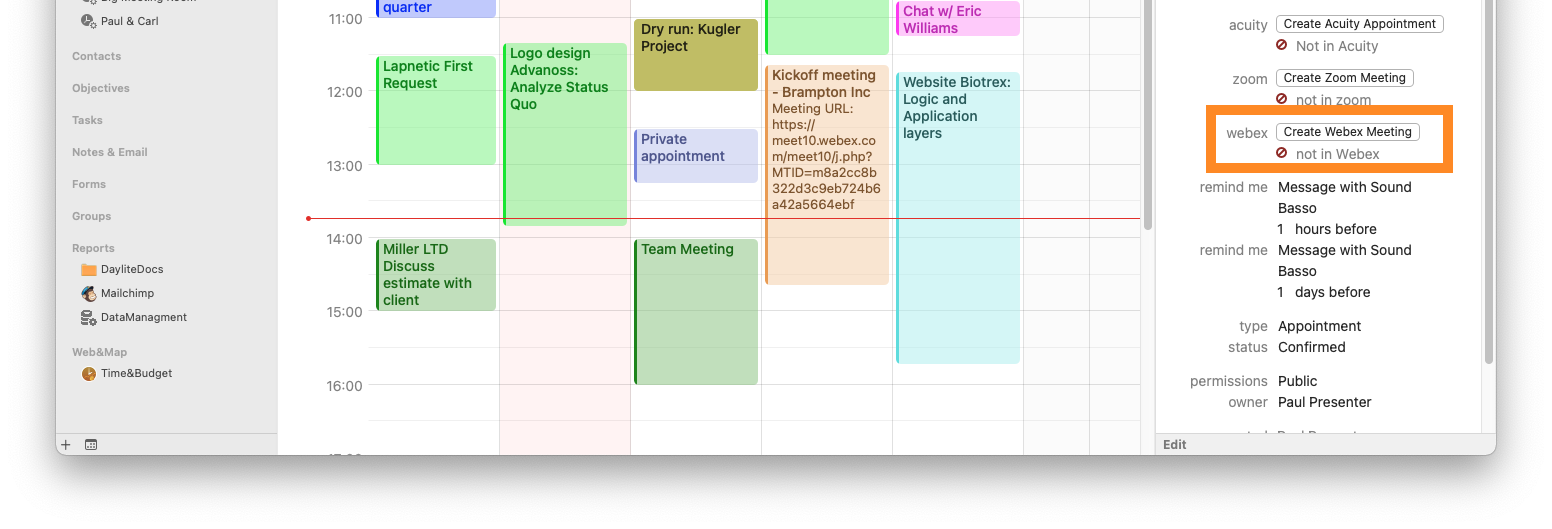
- Select Create Webex Meeting within an appointment in Daylite
- A password protected meeting will be generated
- The meeting URL will be added in the location field of the appointment
- Details and join URL are saved as a note which is linked to the appointment
How can I move/reschedule a Webex meeting within Daylite?
To move an appointment with a Webex meeting, first move the Daylite appointment. Then, in the appointment, click the Webex integrations button and choose update Webex meeting.
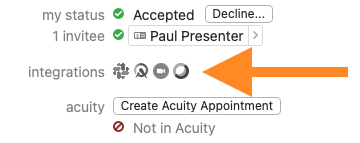
If you have accidentally moved a Daylite appointment and the Webex meeting doesn't match its time and/or date anymore, you can easily reset your Daylite appointment to its original time.
Select the appointment, then choose Manage Webex Meeting -> Move appointment to Webex Meeting date.
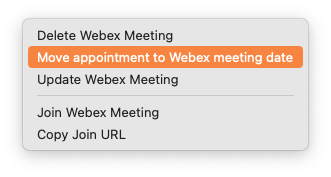
Alternatively, you can update the Webex meeting date or delete the Webex meeting altogether.
How do I delete a Webex Meeting?
In order to use the Daylite Webex integration, you need the Daylite plugin ProductivityTools (see Setup).
To delete a Webex meeting from within a Daylite appointment, proceed as follows:
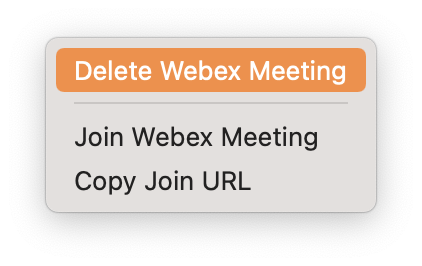
- Within the Daylite appointment click on Manage Webex Meeting
- Select Delete Webex Meeting
- The Webex meeting has now been removed