Use the visualization of the Daylite plugin Boards to better structure your project and opportunity related tasks. Daylite tasks are shown as tickets on a Kanban Board that is related to your project. Delegate tickets to your team via drag & drop.
How to create a ticket for a board is explained in this article:
How do I create a ticket in Boards?
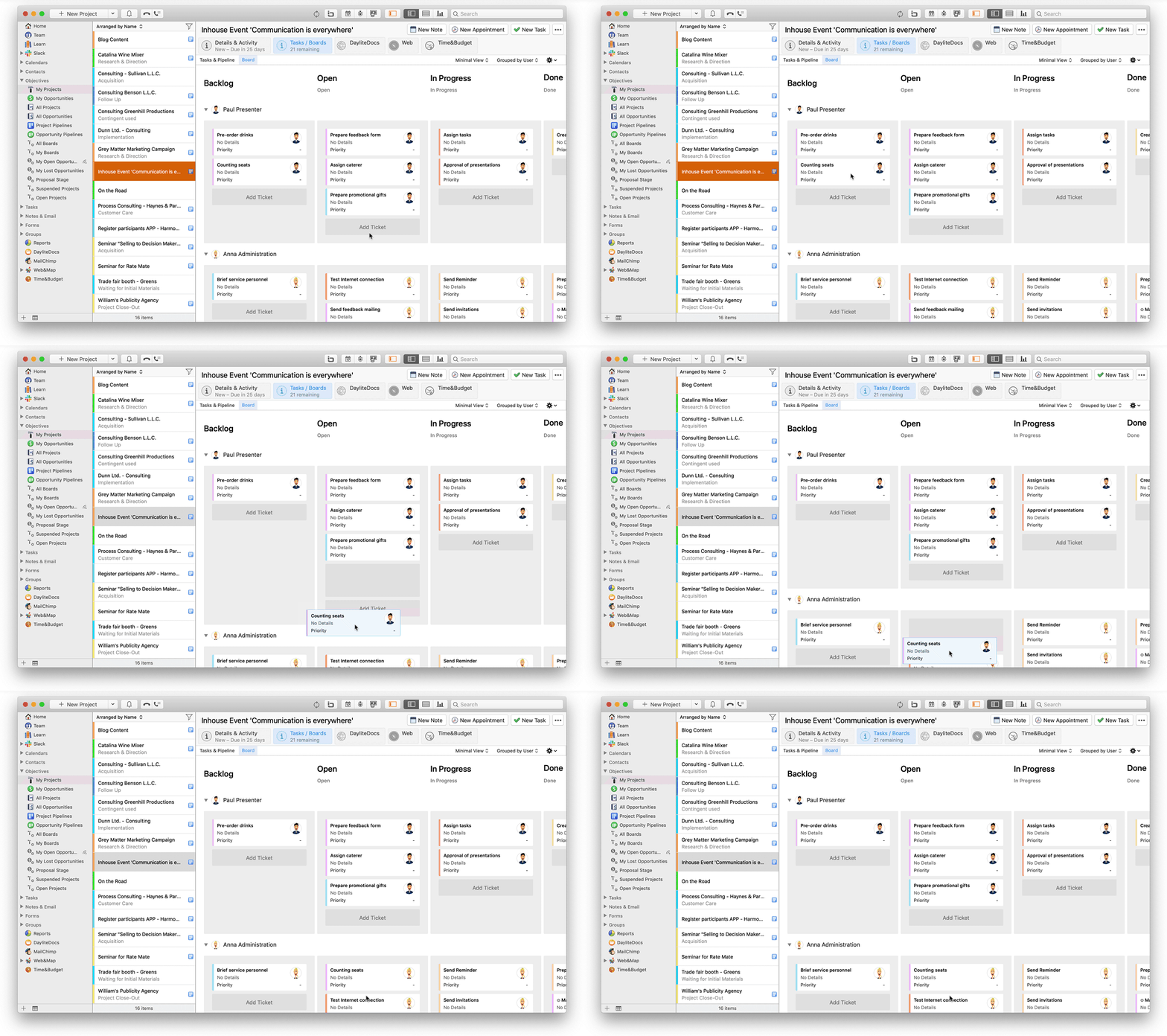
Delegating a ticket in Boards
To delegate a ticket in Boards simply click on the ticket's owner icon and select the desired user to delegate the ticket to.
Alternatively, you can also proceed as follows:
- In the upper right-hand part of the Kanban board select No Grouping to access the grouping drop-down menu
- Select Grouped by User from the drop-down menu
- Drag & drop a ticket onto the desired Daylite user's row to delegate
The ticket has now been delegated to the selected user. By default the user receives a notification about this delegation. If the desired user does not show in the board, link this person to this project via the Details & Activity tab in your project.
Related articles
What is Boards?
What is the column Backlog for in Boards?
How do I manage columns in Boards?
How do I work with grouping in Boards?