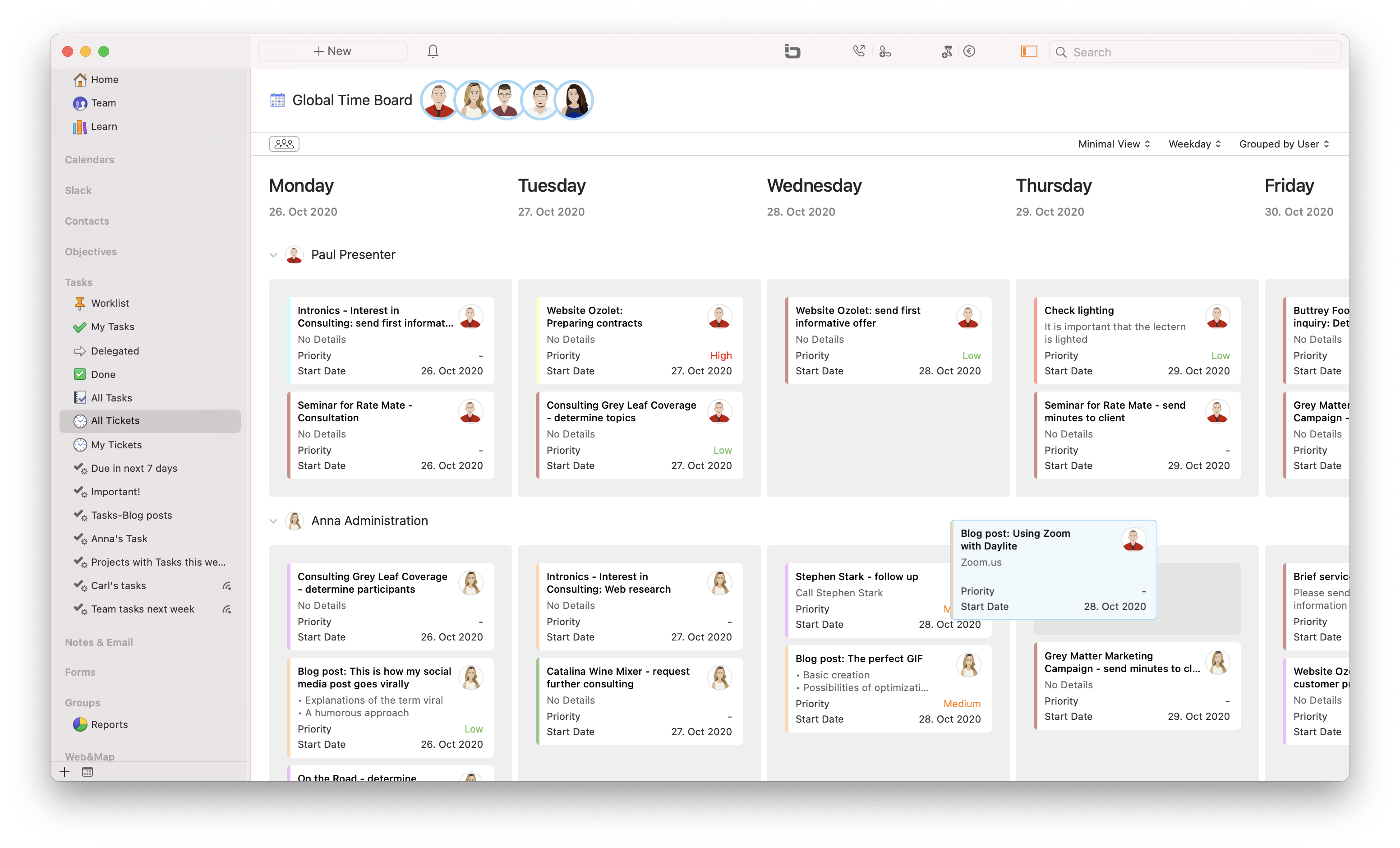
TimeBoards is the time-planning view in Daylite. With TimeBoards, you can schedule tasks (tickets) on a timeline – either within a specific project or opportunity, or across all projects for your entire team. This article covers both variants: TimeBoards within a project as well as global TimeBoards.
Table of Contents
- What are TimeBoards?
- Scheduling views in TimeBoards
- Delegation via drag and drop
- Note: Start date
- What are global TimeBoards?
- My Tickets
- All Tickets
What are TimeBoards?
With TimeBoards, you can easily schedule the tasks of your project or opportunity in Daylite on a timeline.
Open a project or opportunity of your choice in Daylite and navigate from the tab Tasks/Boards to TimeBoards.
Scheduling views in TimeBoards
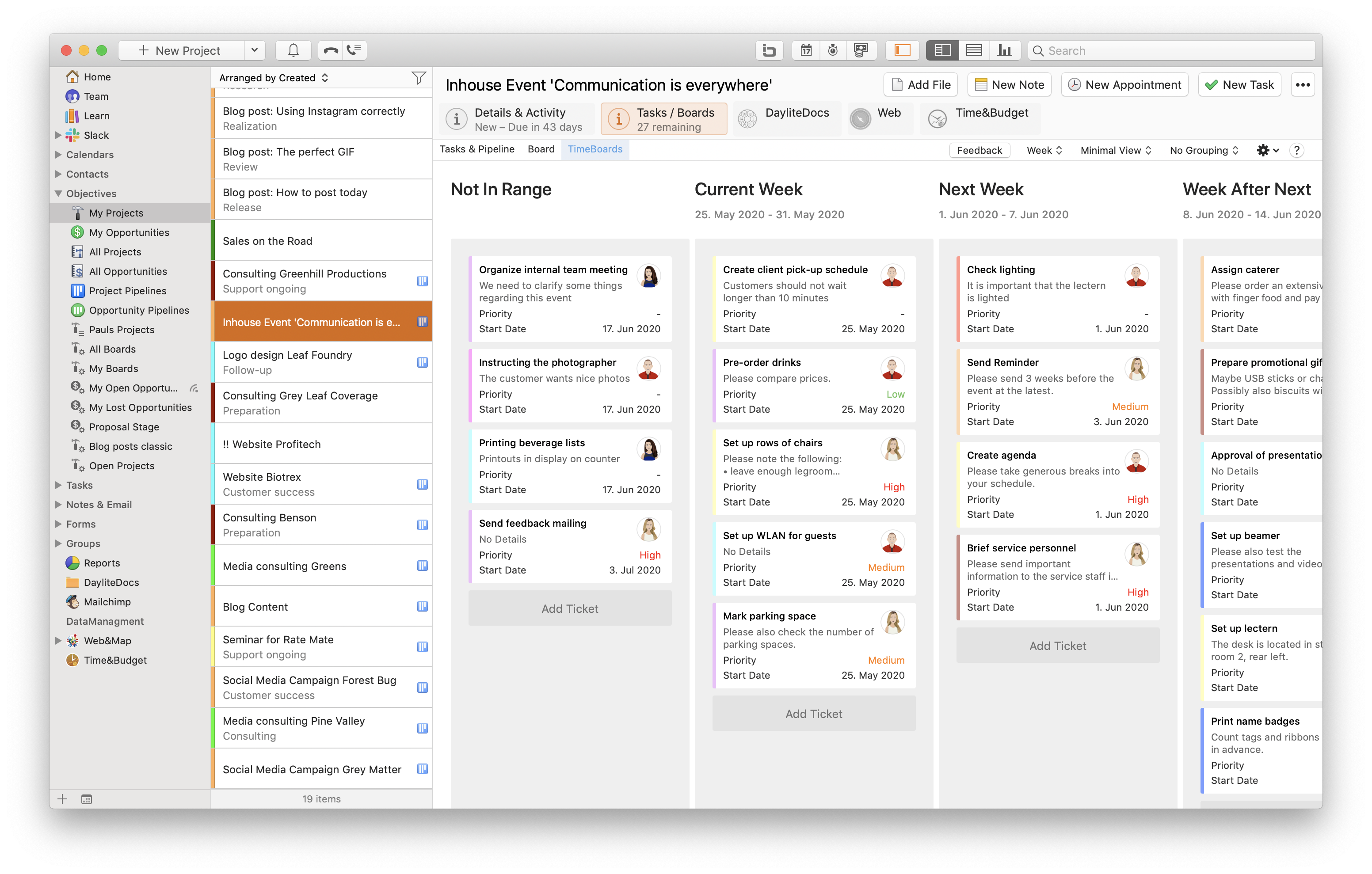
Use the drop-down menu of the TimeBoard to choose whether you want to schedule in a Week, Weekday, or Quarter view.
If you drag a ticket to a corresponding date column, the ticket's start date is automatically set to that day. In the monthly view, the first day of the selected week is always set as the start date.
Delegation via drag and drop
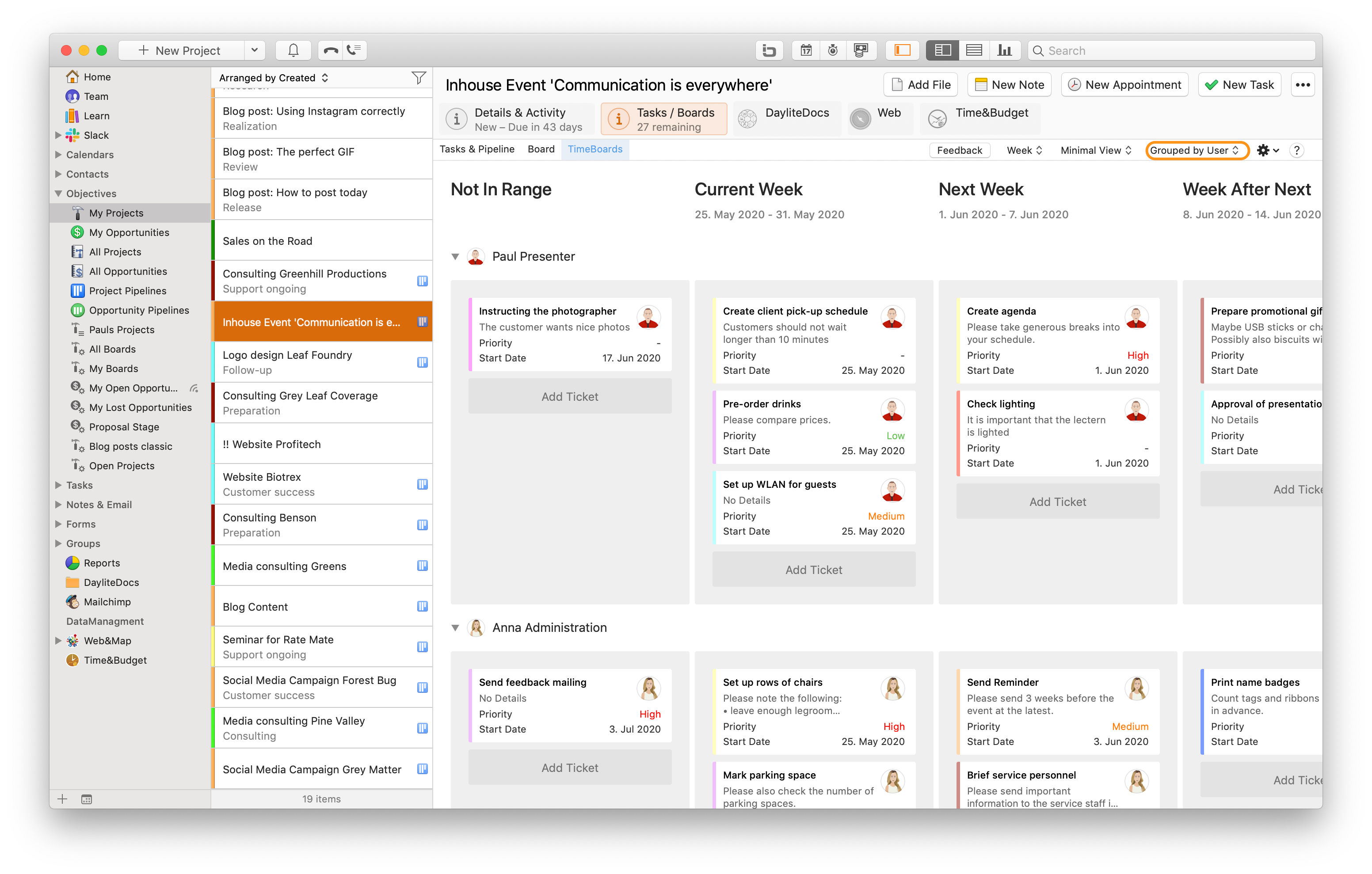
If you group the TimeBoard by users, you can also drag and drop a ticket to delegate it to a team member within your project or opportunity. This way, you always have an overview of who has planned to work on which tasks within a project or opportunity and for which time frame.
Note: Start date
| Please note: TimeBoards work exclusively with the start date of a task. Due dates of Daylite tasks are irrelevant for TimeBoards. |
What are global TimeBoards?
With global TimeBoards, you can schedule all tasks across projects in Daylite. At any time, you have an overview of who has to complete which tasks within a period in the team and can thus plan work packages depending on your colleagues' workload.
Clickable links in a ticket allow you to open web references or even Daylite records with a single click to get even more detailed information relevant to your task.
My Tickets
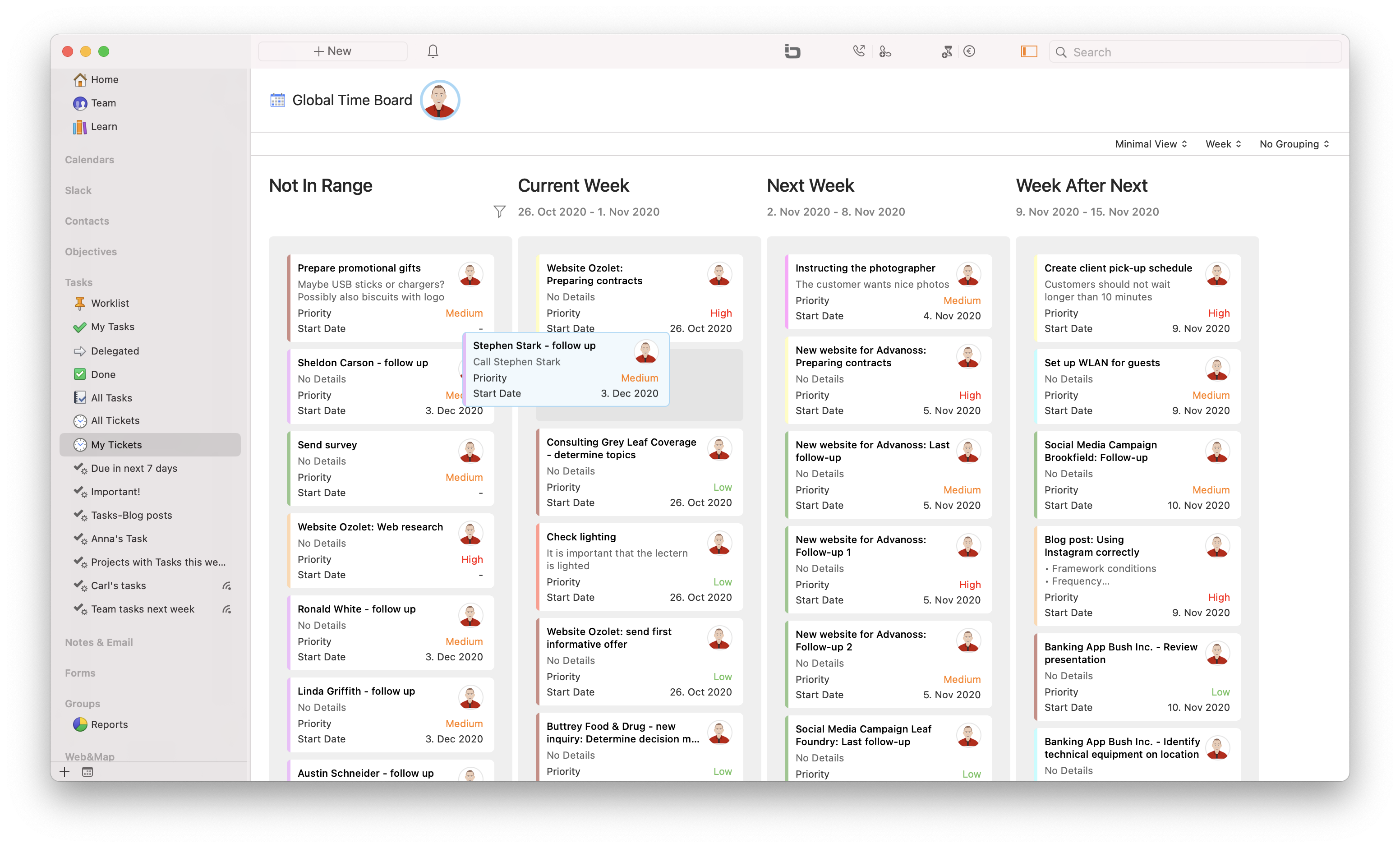
My Tickets shows all your tasks in the form of tickets that do not have the status Done or Cancelled. This allows you to schedule your tasks with just a few clicks.
Choose whether you want to see the tickets in Week or Weekday view and group them optionally by Priority or Category.
For the column Not in Range, you can use the filter icon to define which tickets are displayed depending on the created date (example: Today, Last 3 days).
All Tickets
All Tickets shows the tasks of all colleagues (Daylite users in your database) in the form of tickets that do not have the status Done or Cancelled.
Choose whether you want to see the tickets in Week or Weekday view and group them by user. This gives you an overview of the workload of all colleagues. You can also group the tickets by Daylite Teams, which you can define in the Daylite settings.