iOSXpert PluginCenter brings together all iOSXpert apps, reports and print templates for Daylite in one place. Besides installing and managing plugins, the PluginCenter also includes free features that are available directly within Daylite. This article covers the ImportAssistant and the primary indicators.
Table of contents
Features
Features
ImportAssistant
To create a new person or company from an address block with the right mouse button in Daylite, you need the iOSXpert PluginCenter. The feature ImportAssistant is free of charge for all PluginCenter users, can be used system-wide and allows you to select any part of the text to create a contact in Daylite.
To create a new person or company in Daylite, proceed as follows:
- Highlight the desired person or company
- Use the right mouse button to select Services and choose
- Create person in Daylite or
- Create company in Daylite
- The Daylite dialog opens in which you can further edit the person/company created
- Select Save to save the contact
In addition to persons and companies, it is also possible to create tasks, notes and appointments.
Application examples:
- Information from e-mail signatures
- Information from legal notices
- Information from text documents/PDF files
- Information from tables
|
Please note: If the ImportAssistant does not work as expected, please check your Mac's System Settings under Privacy & Security -> Automation if the particular app you are using the ImportAssistant in (e.g. Safari or Mail) is allowed to control Daylite. |
Primary indicators
The iOSXpert PluginCenter includes a feature that displays primary indicators on Daylite contacts. Primary indicators ( ) show you in a person or company record in Daylite which address data (phone number, e-mail address or postal address) is used by default, for example when you call a contact, send an e-mail or create an estimate in Daylite.
The primary indicators can be found for the address, email, and phone numbers of contacts and are divided into three levels:
-
 = Entry is primary
 -
 = Entry is secondary (only possible for telephone numbers)
 -
= Entry is not primary or secondary for telephone numbers
Set addresses as primary
For setting a postal address or e-mail address of a person or company data record as primary, click on the grey star. The selected address will now be saved as the primary address used and will be displayed first.
There are two ways to set primary phone numbers:
1. Set secondary number primary
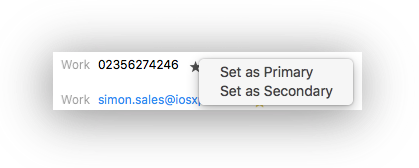
Click on the star next to the secondary phone number to set it to primary. The primary phone number is now saved as the secondary phone number.
2. Set other number primary
For phone numbers that are not secondary you have the possibility to set them to primary or secondary after clicking on the star.
Disable primary indicators
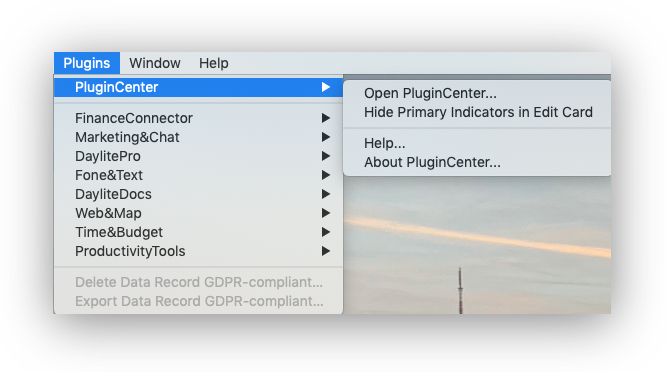
You can deactivate the function of the primary indicators via the Daylite menu bar -> Plugins -> PluginCenter -> Hide Primary Indicators in Edit Card. Afterwards you have to restart Daylite once to make the changes visible.
Take a look at this article to learn how to set addresses and phone numbers as primary: How do I set a phone number or address as primary?