Web&Map is the iOSXpert plugin for Daylite. Its Web part brings a context-sensitive browser right into Daylite: open websites in the Web tab without switching applications, search web services such as social networks or travel connections using the data of the selected contact, and attach websites permanently to contacts, companies, projects, opportunities and groups.
For an overview of the whole plugin, see What is Web&Map?
Table of contents
Opening websites in Daylite
Web services
Adding websites to a record
Saving websites as favorites
Please note
Opening websites in Daylite
Ways to access websites
In this video we show you where the web features of the Web&Map extension can be used in Daylite.
With Web&Map you can open website contents directly in Daylite and attach them to Daylite records. Web&Map offers the following options to access websites:
- In the Daylite sidebar navigate to Web&Map and click on Web. You can open a URL from there
- Click Web tap of a contact. From the dropdown menu select a web services to search. For example, if you select Facebook then the Facebook search will be pre-populated with the details of the contact selected
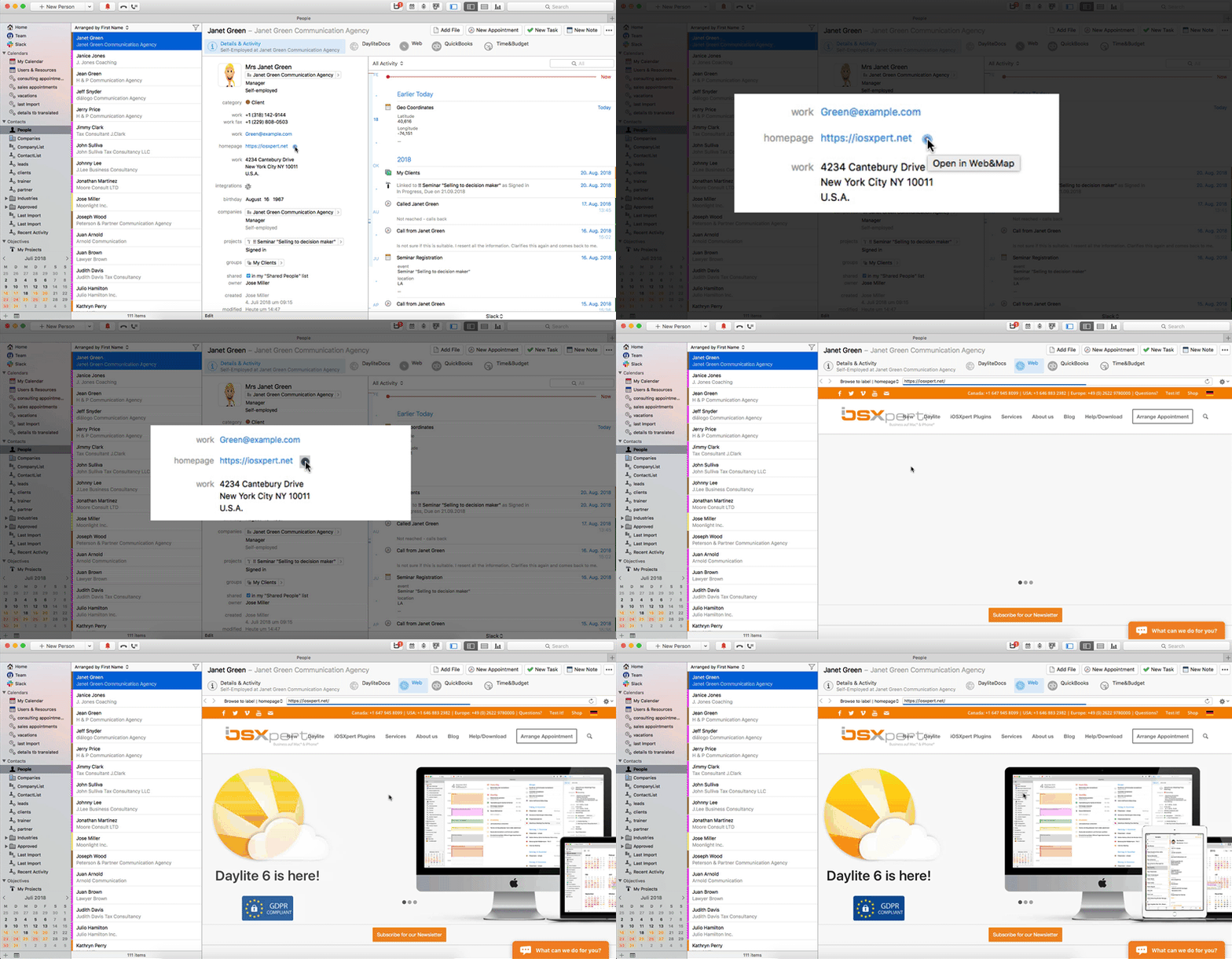
- In a person's record or company record, click the Safari icon next to a URL and the URL will open in the Web tab.
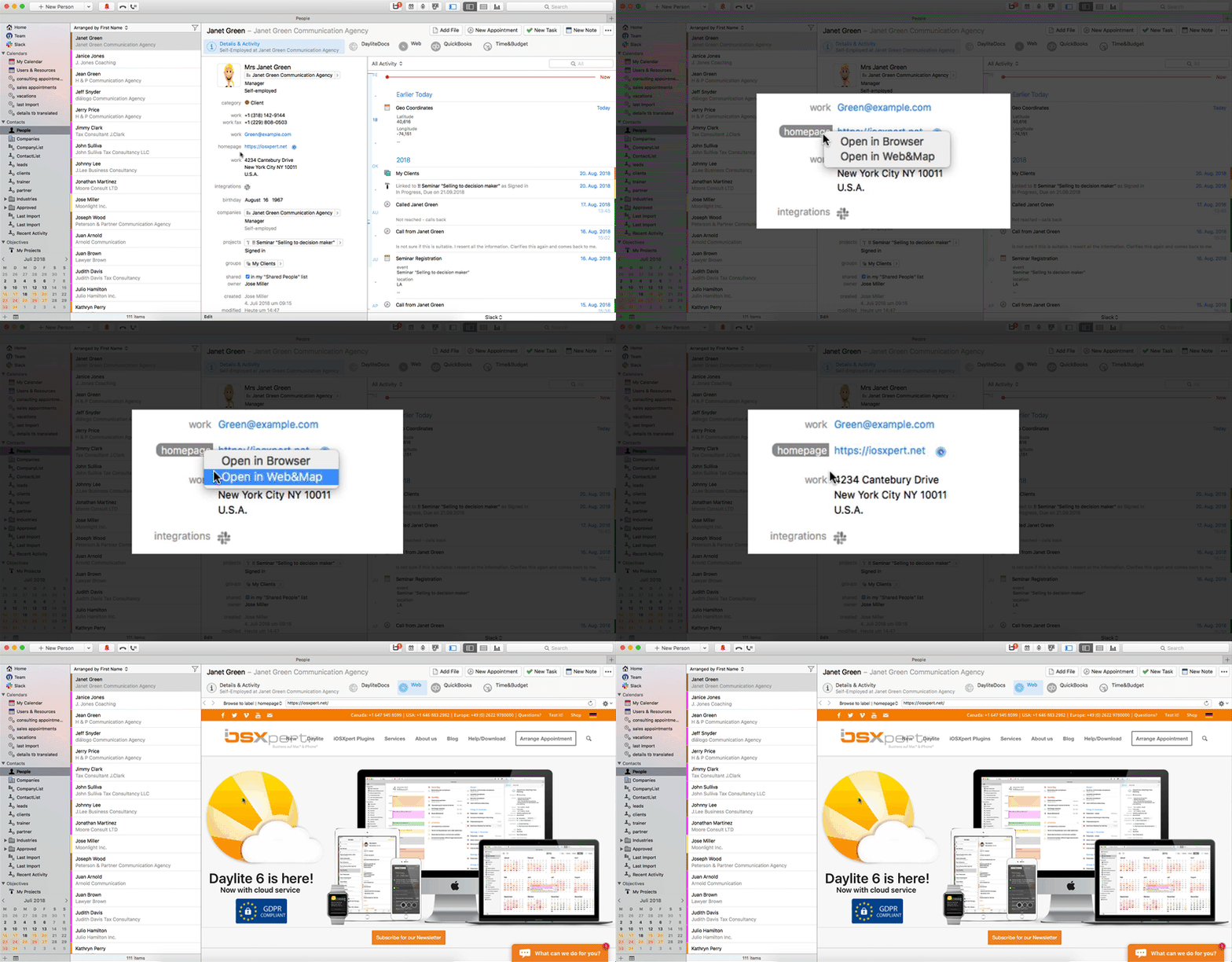
- Alternatively, you can click on the label of the URL and select Open in Web&Map
Web services
Add web-based information from social networks such as Facebook to your Daylite contacts. Search for useful information, such as traffic connections to your next customer appointment, via various web services that can be linked to Daylite via Web&Map.
Using web services
To use web services in Web&Map, please follow these steps:
- Navigate within the Daylite sidebar on the left to Persons
- Choose a person's record and click on the Web tab
- Select in the drop-down menu, next to the search box, a web service you'd like
Configuring which web services are displayed
In the Web&Map app, a large selection of web services are available for context-sensitive web searches. You can determine which services are displayed in Web&Map's web services drop-down menu.
Proceed as follows:
- In the menu bar navigate to Plugins -> Web&Map -> Preferences...
- Select URL-Templates
- Enable or disable the desired services by checking or unchecking the boxes accordingly
Adding your own web service
The available web services for web searches in Web&Map can be supplemented with your own web services.
To manage web services, open PluginCenter and navigate to Web&Map > Preferences > URL-Templates
Here you can create new templates, edit, duplicate and delete existing ones.
| Tip: We'd be happy to assist you in creating the URL template for your web service. Please contact our support. |
Adding websites to a record
Add a website to an existing record like a contact, a project, an opportunity or a group to access it faster. This is especially handy when a Daylite project or opportunity needs to be linked with a project folder on your file server or a webpage.

Adding a website to a record
- Select a record in Daylite (contact, company, project or opportunity)
- Select the tab Web&Map
- Enter a URL and press Return
- Click on the gear icon
- Click on Add to Object
- Review the URL, chose a label and add a note, the click on Add
- Projects, opportunities and groups now display the referenced website. People and companies display the website in the record details.
Opening a stored web reference
- Select the desired record (contact, company, project or opportunity)
- Open the Web tab
- Select Browse to web reference
- The selected link or URL will then be opened within the Web tab
Saving websites as favorites
Adding and removing favorites
If you visit certain pages frequently, you can also save them as favorite. For this purpose you can select Add to Favorites via the gear wheel.
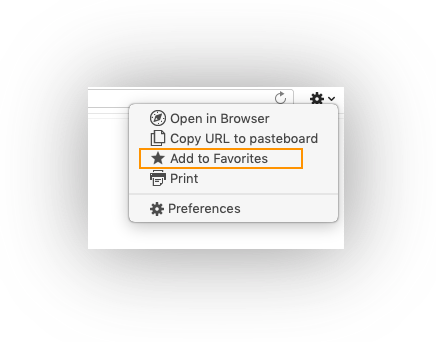
The favorites are then displayed in a bar below the URL field.
If you no longer need a favorite, you can remove it from the Favorites bar by clicking the right mouse button.
Please note
The XING import is no longer available
| Attention: Web&Map includes a function to import or update contacts via XING. These functions now link to a blog entry about the shutting down of the XING API. |
As of March 29, 2019, XING has closed the API for exporting contacts, the function no longer works. This applies to all developers using the XING API.
Already in 2014, XING removed the option to export contacts as CSV files.
Our development team is looking for ways to extract data from XING using alternative methods. If there is an alternative way, we will implement the export function in Web&Map again when available.