Slack is an online chat and video calling system that supports you and your team in your daily collaboration. Exchange important information and documents with your colleagues, and use the integrated video calling feature to discuss topics regardless of location. With the plugin Marketing&Chat you can also integrate Slack into your Daylite database, giving you the ability to keep track of internal conversations related to clients, projects, or opportunities — and access them at any time.
Table of Contents
- What is Slack and how can I log in?
- 🎬 How do I set up Daylite Slack Integration?
- 🎬 How do I use Daylite Slack Integration?
- How do I link existing Slack channels in Daylite?
- How do I remove a Slack Channel from a Daylite object?
What is Slack and how can I log in?
Slack is an online chat and video calling system that supports you and your team in your daily collaboration. Exchange important information and documents with your colleagues, and use the integrated video calling feature to discuss topics regardless of location.
With the plugin Marketing&Chat you can also integrate Slack into your Daylite database. This gives you the ability to keep track of internal conversations related to clients, projects, or opportunities in Daylite and access them at any time.
You can create a Slack account and workspace directly on the Slack website. Alternatively, when setting up the integration in Daylite, you can create a new workspace via the Create Workspace button.
🎬 How do I set up Daylite Slack Integration?
In this section you will learn how to integrate Slack into Daylite. How to install iOSXpert plugins is explained in this video tutorial.
To set up Slack Integration for Daylite, proceed as follows:
- Navigate to the Daylite preferences → iOSXpert PluginCenter
- Select the plugin Marketing&Chat
- Under Integrations you will find Slack
- Activate Slack Integration
- Click the Add Workspace button
- If you do not yet have a Slack Account or Workspace, click on the Create Workspace button
- In the following dialog, enter the URL of your Slack workspace and confirm with Next
- Now log in with your Slack access data
- Click the Authorize button to allow the connection between Daylite and Slack
The connection between Slack and Daylite is now established and active.
🎬 How do I use Daylite Slack Integration?
In this section you will learn how to use the Daylite Slack Integration of the plugin Marketing&Chat in Daylite.
Features of Slack Integration
- A Slack symbol with badge counter for new Slack messages in the left menu bar
- Receive Daylite notifications about new Slack messages
- Create new Slack channels for people, companies, projects, and opportunities in Daylite
- A hyperlink is automatically created in the created channel and pinned to the corresponding Daylite object
- Take advantage of all the Slack features in Daylite
How do I link existing Slack channels in Daylite?
This section covers linking an existing Slack channel to an object in Daylite, such as a person record.
To link an object with an existing channel, follow these steps:
- Open an object in Daylite
- Select the Slack widget in Copilot and click on Link or Create Channel
- Click the blue arrow to expand the drop-down menu and select from the existing channels
- Confirm your selection by clicking Link Channel
How do I remove a Slack Channel from a Daylite object?
One of the main functions of the integration in Daylite is to assign a Slack channel to an object (for example, a person record) or to create a channel for that object.
If you no longer need such a channel on a Daylite object, you can remove the link as follows:
- Open the object in Daylite (e.g. a person)
- Click under Integrations on the Slack icon
- Select Unlink Channel
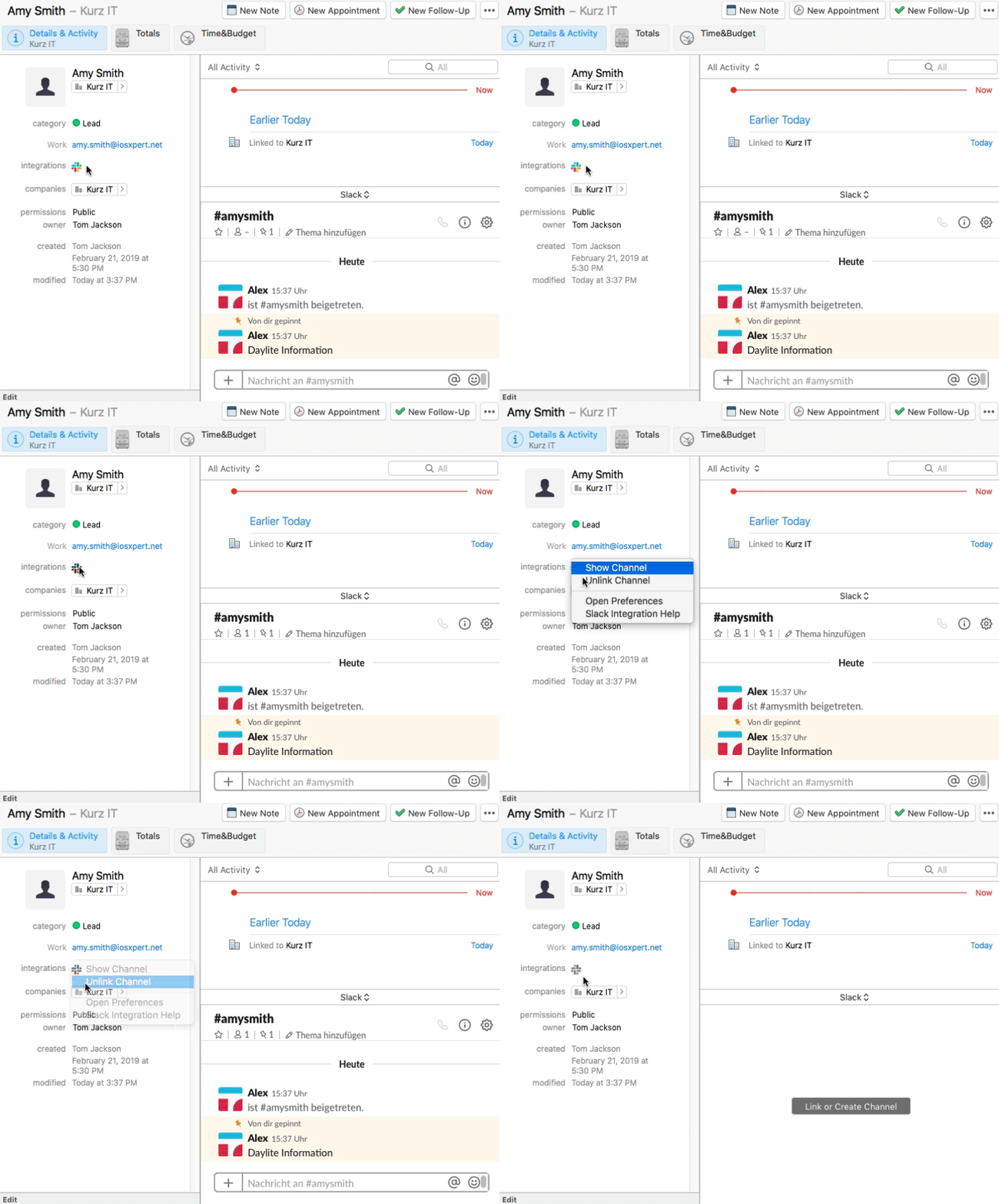
| Note: The channel is then no longer linked to the object, but is still present in Slack. |