WebForms is a Daylite extension by iOSXpert that connects the web form service Wufoo with Daylite. It allows website visitors to fill out forms whose entries are automatically or manually imported into Daylite — including the automatic creation of persons, companies, tasks, projects, and opportunities.
Table of Contents
- What is WebForms?
- How do I set up WebForms?
- How do I generate a Wufoo API key?
- Why does my API key become invalid on a regular basis?
- How do I create a Wufoo form?
- How do I create a Wufoo contact form for my website?
- How do I integrate Wufoo forms?
- How do I import website form data into Daylite?
- What happens when importing Wufoo forms?
- Does WebForms perform a duplicate check during import?
- Which Daylite processes can be automated with WebForms?
- How do I run a script with WebForms?
- Why is the action "Create Person" not available?
What is WebForms?
Wufoo is a web application that allows anyone to create web forms. Wufoo forms can be integrated on any website. The submitted forms are stored in a database automatically created by Wufoo and can be accessed from anywhere.
WebForms offers the following features:
- The transfer of Wufoo form definitions into Daylite forms
- The import of Wufoo form entries
The import process can be linked to the following actions:
- Creating a person in Daylite
- Creating a company in Daylite
- Creating and delegating a task in Daylite
- Creating a project in Daylite
- Creating an opportunity
- Running an individual script
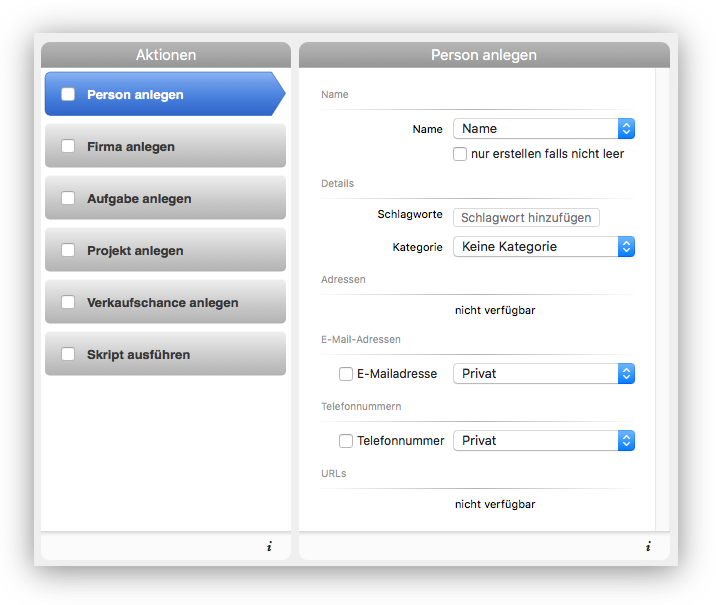
These objects can be assigned freely selectable categories and keywords in the WebForms settings.
The import process can be carried out automatically in a selectable time interval or can be started manually.
🎬 How do I set up WebForms?
WebForms allows you to link forms on your website to Daylite in such a way that your website visitors' input is passed directly to your Daylite system.
Watch this video to learn how to set up Wufoo in the Daylite App WebForms.
To create a form using Wufoo in Daylite, the Daylite extension WebForms and an account at Wufoo are required.
If you already have a Wufoo account, do the following:
- Create the desired form in Wufoo with the required fields.
- Save the form and choose I'm finished. Take me back to Form Manager.
- Navigate to More → API Information.
- Copy the API key to your clipboard using cmd ⌘+C.
- Now switch to Daylite and navigate to Plugins → WebForms → Settings.
- Use cmd ⌘+V to paste the copied API key into the corresponding field.
- Back in the browser, go to Account → My Account on the Wufoo website.
- Copy the displayed subdomain to your clipboard.
- In Daylite, go back to the WebForms settings and insert the subdomain there.
- The entered data is validated and confirmed in green.
You can now close the browser and manage the forms from within Daylite.
- To do this, go to Plugins → WebForms → Manage Forms.
- Check the box next to the created form to activate it.
- Configure the actions to be performed in Daylite upon importing the form.
- Activate WebForms by setting the slider to ON.
You can also use this view to set the interval at which Daylite shall import data from Wufoo automatically.
How do I generate a Wufoo API key for WebForms?
The Daylite plugin WebForms makes it easy to forward information entered into a web form on your website to your Daylite database. From there, you can work with the data as needed.
You will need an API key to connect the Wufoo service to your Daylite database. This API key is stored in the settings of the Daylite extension WebForms.
Before using WebForms, you need your own account at Wufoo and at least one form created there.
Follow the steps below to get an API key for Wufoo:
- Log into your Wufoo account at the Wufoo website.
-
You are now in the Form Manager area.
Note: Please create a Wufoo form first, if you have not done so yet. - Select a form and click on the Share button below the table row of the form.
- You are now on the Share page.
- Click on the API Information button.
- Copy the API key and paste it under Plugins → WebForms → Settings.
Why does my API key become invalid on a regular basis and WebForms stops importing forms?
Wufoo limits access to data via the API depending on the plan chosen. With the free Wufoo plan, this is 100 queries per API key per 24 hours. Queries are counted per form field. If the limit is exceeded, the API key becomes invalid and must be regenerated.
To avoid regularly exceeding the limit, you can either increase the import interval in the WebForms settings or subscribe to a different Wufoo plan. The Starter plan already includes 10,000 API queries. For more information about Wufoo's plans, visit the Wufoo pricing page.
To reset an invalid Wufoo API key, please proceed as follows:
- Log into your account on the Wufoo website.
- In the Forms tab, select any form, open the three-dot menu in the More column, and click API Information.
- Click Reset next to the displayed API key and confirm in the next step.
- Copy the newly generated API key.
- In the Daylite menu bar, navigate to Plugins → WebForms → Settings → Account and replace the invalid API key with the one you just copied.
WebForms can now import Wufoo form data again.
How do I create a Wufoo form?
With the Daylite app WebForms, you can import website forms from the form service Wufoo into Daylite. This section covers creating a Wufoo form.
After creating your account, log in with your credentials at https://secure.wufoo.com/login/. You are now in the Wufoo administration interface. Here you can create and edit forms and much more.
| Note: You must create at least one form before you can use WebForms. It is not possible to create or edit forms within WebForms itself. |
When you create a form for the first time, an API key is also generated for you. This is required — together with your username and password — to connect WebForms with your Wufoo account.
- In the Forms overview, use New Form! to create a new form.
- Using drag and drop, you can easily assemble your individual form.
- Under Form Settings, you can change the name of the form.
- Save your form by clicking Save Form.
🎬 How do I create a Wufoo contact form for my website?
Wufoo web forms are required to import form data into Daylite using the Daylite extension WebForms.
Watch this video to learn how to use Wufoo to create a contact form for your website.
Log on to Wufoo to create online forms. The form is then integrated into your own website. Wufoo offers several options for this, such as a shortcode for WordPress. After creating the form, navigate to the created form in the Form Manager and choose Share.
How do I integrate Wufoo forms?
Wufoo offers several ways to integrate a form with Daylite:
- Direct use via the web application: Wufoo generates a URL for each created form, via which the form can be publicly accessed and filled out.
- Integration on a website: The Wufoo form is integrated on your own homepage, for example.
- Send by email: The link to the form is sent by email.
- Further options can be found on the Wufoo website in the Form Manager under Share.
In all cases, the submitted form entries are stored in the database created by Wufoo. The records can then be retrieved in a browser or via a special application programming interface. The latter is what WebForms uses to import your form data into Daylite.
🎬 How do I import website form data into Daylite?
With the Daylite app WebForms, you can import website forms from the form service Wufoo into Daylite.
Watch this video to learn how to automatically import Wufoo form data into Daylite.
The WebForms app synchronizes newly created form entries with Daylite. This is done either manually or automatically. After connecting WebForms with your Wufoo account, Daylite creates a copy of each filled-in Wufoo form as a Daylite form.
Manual import:
- Open Daylite.
- Choose Plugins → WebForms → Manage Forms... from the menu bar.
- Manually import form data by clicking Import Now.
Automatic import:
To do this, select the desired time interval in the WebForms settings and set the ON-OFF switch to 'ON'.
What happens when importing Wufoo forms?
When new form entries are imported, a Daylite form is first created that contains all the information from the original Wufoo form.
Depending on the configured actions, corresponding entries for persons, companies, or tasks are created and linked to each other.
Does WebForms perform a duplicate check during import?
The iOSXpert extension WebForms imports your form entries from the Wufoo platform directly into Daylite and offers you the option to execute various actions — such as creating a person.
WebForms checks whether a person or company to be imported already exists in Daylite. The following criteria apply:
- A person is considered to already exist if their first name, last name, and email address in Daylite match the data from the Wufoo form entry.
- A company is considered to already exist if its name in Daylite matches the data from the Wufoo form entry.
If a company or person is recognized as already existing, no new contact is created. A new form entry is still created and linked to the existing contact.
Which Daylite processes can be automated with WebForms?
The Daylite extension WebForms provides a connection between the web service Wufoo and Daylite. WebForms can perform various actions when importing form data.
To configure an action for a form import, navigate in the menu bar to Plugins → WebForms → Manage Forms.
You can decide per form what should be imported into Daylite. The following Daylite records can be created based on the imported form data:
- Persons
- Companies
- Tasks
- Projects
- Opportunities
Additionally, it is possible to run an individual script when importing form data. A script can extend the functionality of WebForms in any way you need.
How do I run a script with WebForms?
The functionality of WebForms can be extended in any way by adding a so-called script. A script can be pasted from the clipboard into the text field in the WebForms settings. By adding a script, the import process can be further customized to individual needs.
For example, it is possible to use the person's name as the name of the company to be created in Daylite, if no company name was provided in the form.
| Note: Creating scripts requires programming experience as well as sufficient knowledge of the Daylite architecture. If you are interested in having a script developed, simply send us an email at hallo@iosxpert.biz — our development team will be happy to assist you. |
Why is the action "Create Person" not available?
In order for the Daylite extension WebForms to create a person in Daylite when importing Wufoo form data, the corresponding form must contain the Fancy Pants form field Name. If the field Single Line Text is used instead, the action Create Person is not available.